CadVex user guide · Chapter 11
Every screen, explained
This chapter walks through every screen you can open in CadVex, in the order of the menu. For each one: what it shows, how it works, and where the details are.
CadVex Cloud and CadVex Desktop share most of their screens. Where a screen exists in only one of them, it says so.
The menu
The menu on the left is the same in both apps: Home, New RFQ, Analysis History, Quote History and Settings.
- Cloud adds, at the bottom: your usage (click it to open Billing), your email with Sign out, and during the Free Evaluation a Quick guide button.
- Desktop shows your name and job title at the bottom. A dot on Settings means an update is ready. Sign out is in Settings → My Account.
Home
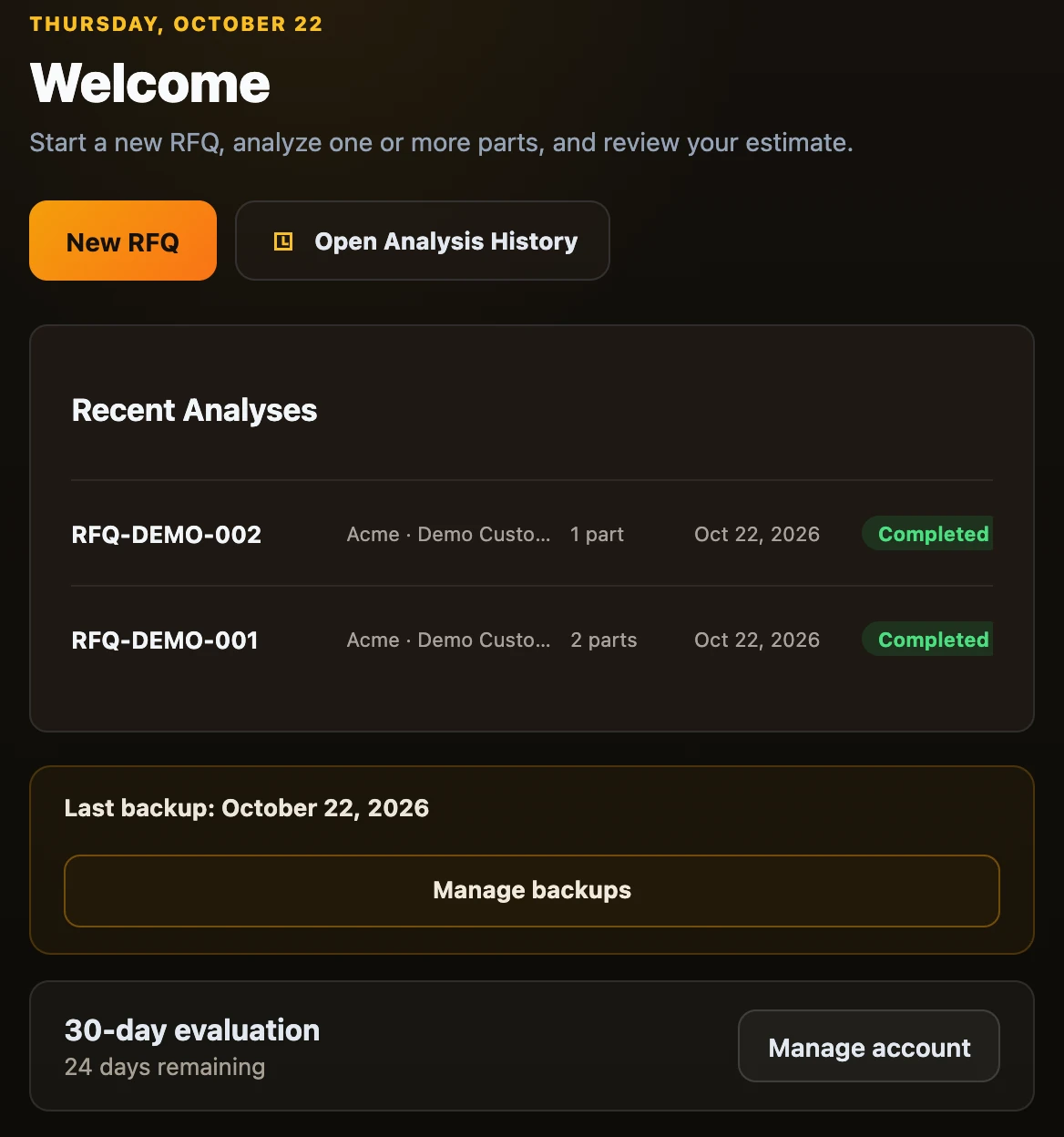
What it shows: a welcome line with today's date, then Recent Analyses, your last RFQs with their customer, number of parts, date and status. If you left RFQs unfinished, Continue where you left off lists them.
How it works: click Open on a recent analysis to go back to it, or Continue on an unfinished one. New RFQ starts a new one. Open Analysis History shows them all.
Desktop also shows a backup reminder (Create backup or Manage backups) and, during the evaluation, a card about your license (Manage account or Activate device).
New RFQ
A new RFQ is a wizard with four steps shown at the top. You can click back to any step you already reached.
Before you start (Cloud)
What it shows: what stops you from analyzing, if anything: no shop currency yet, or your free analyses are used and billing is not set up.
How it works: follow the button to Settings or Billing, or click Return home.
1. RFQ details
What it shows: the customer fields: name, company, email, reference or RFQ number, needed-by date and notes. All optional.
How it works: fill what you know and click Continue to upload parts →. Cloud suggests companies you quoted before. Desktop has a customer list (Select customer, + New customer).
2. Upload parts
What it shows: a drop zone for the STEP file, one for the drawing, the part details (quantity, material, finish, surface roughness, threads, tolerance, part marking) and, on the right, the RFQ summary with the parts you added.
How it works: add one part at a time and click Add part. The analysis starts at once; each part card shows Queued, Analyzing…, Ready or Failed, with the current step and a clock. See Run an analysis.
3. Review parts
What it shows: every part with its status, quantity, material, unit price and line price, and the batch total.
How it works: Review → opens a part's results. Save analysis & quote later keeps the RFQ for later. Continue to generate quote → goes to the quote. Desktop adds Retry for failed parts and Add another part.
4. Generate quote
What it shows: the customer, the quote details, the line items with prices and totals, options for assembly, shipping and a DFM report, and the PDF preview.
How it works: see Quotes.
Part results
You open a part's results with Review → in Review parts, or by opening an RFQ from Analysis History.
At the top: a back button to the RFQ, "Reviewing part 2 of 3", and ← Prev, Next part → or Finish review →. Desktop also has a switch between 3D Model and Drawing (or Add drawing).
On the right: the 3D part, with the view buttons Fit, Reset, Top, Front, Right, Iso, Highlights, the perspective switch and Snapshot.
General Information
What it shows: the file, material, density, volume, weight, the features CadVex found, the part envelope and, when they came from a drawing, the drawing notes.
How it works: read only.
DFM Feedback
What it shows: the complexity score, then the cards under Issues requiring attention, Notes and checks passed.
How it works: click a card to highlight its locations on the part and step through them. See DFM feedback.
Cost Analysis
What it shows: the estimate in seven steps (Part Summary, Material & Stock, Raw Pricing, Material Removal, Machining Plan, Shop Rate Card, Setup & Quantity) beside the live estimate: low, expected and high price, the cost breakdown, What changed this estimate? and Assumptions at a glance, which you can export.
How it works: open a step, change a value, and the estimate updates. ↺ Reset step undoes a step. Save Analysis keeps the changes for this analysis. Export machining plan, next to it, saves the estimate on screen as CSV and JSON files. See Run an analysis and Export the machining plan.
Machining Plan (Cost Analysis, step 5)
What it shows: the route selector, the operation tree with minutes per part and once per job, the details of the selected line, and the 3D part or the drawing.
How it works: double-click a value to edit it, right-click a line for more actions, pick another route, compare routes. See The machining plan and Routes and quantities.
Dialogs you meet in Cost Analysis
- Finish, threads & tooling: the inputs that are not lines in the tree: fixtures, special tooling, finish zones, threads, treatment, marking.
- Select faces for a finish: click faces on the part to say where a finish applies, then Done.
- Select thread surfaces: click the cylindrical or tapered surfaces that carry a thread.
- Confirm thread specifications: choose each thread's size and type, or Browse all threads…, then Confirm specification. Quotes wait until every thread is confirmed.
- Leave without saving cost changes? appears only when the automatic save fails as you leave a part. Keep editing or Discard changes and leave.
The drawing
- Cloud: View drawing opens it in a window, with Open in new tab ↗.
- Desktop: the Drawing view shows the drawing beside the part, with Fit width, Replace drawing and Remove drawing, and the Drawing requirements panel: what CadVex read, in plain words, with Show source to find each item on the drawing, Reprocess drawing to read it again and Add a manual requirement. See What Desktop reads.
Analysis History
What it shows: every RFQ: number, company, customer, date, number of parts, total, notes.
How it works: Open goes back to the parts. Create quote (Cloud) or Generate quote (Desktop) goes to the quote step. View in the Notes column shows the RFQ notes. The bin icon deletes the RFQ and its parts.
Quote History
Two tabs: Generated quotes and Statistics.
Generated quotes
What it shows: every saved quote: number, company, customer, date, parts, total, status and notes. A search box and filters for company and status; Desktop can also sort.
How it works: click a quote to see its PDF (Cloud: Download; Desktop: Save PDF As…). Change the status in the Status column. The bin icon deletes the quote. See Quotes.
What did the customer order?
What it shows: appears when you set a quote to Won. It lists the quote's lines with quantities and amounts.
How it works: tick the lines the customer ordered, one quantity per part, and click Mark Won. The won value goes into your statistics.
Statistics
What it shows: for the period you choose: total quotes, win rate, value won, open pipeline and parts quoted, then the outcome breakdown, quote activity, top customers and materials quoted.
How it works: pick a period at the top, or a custom range, and click Apply. Export quotes and statistics, beside the period, saves the quotes and statistics of that period as CSV and JSON files. See Quotes.
Settings
The tabs differ between the two apps. Each is explained in Set up your shop.
| Tab | Where | What it shows and how it works |
|---|---|---|
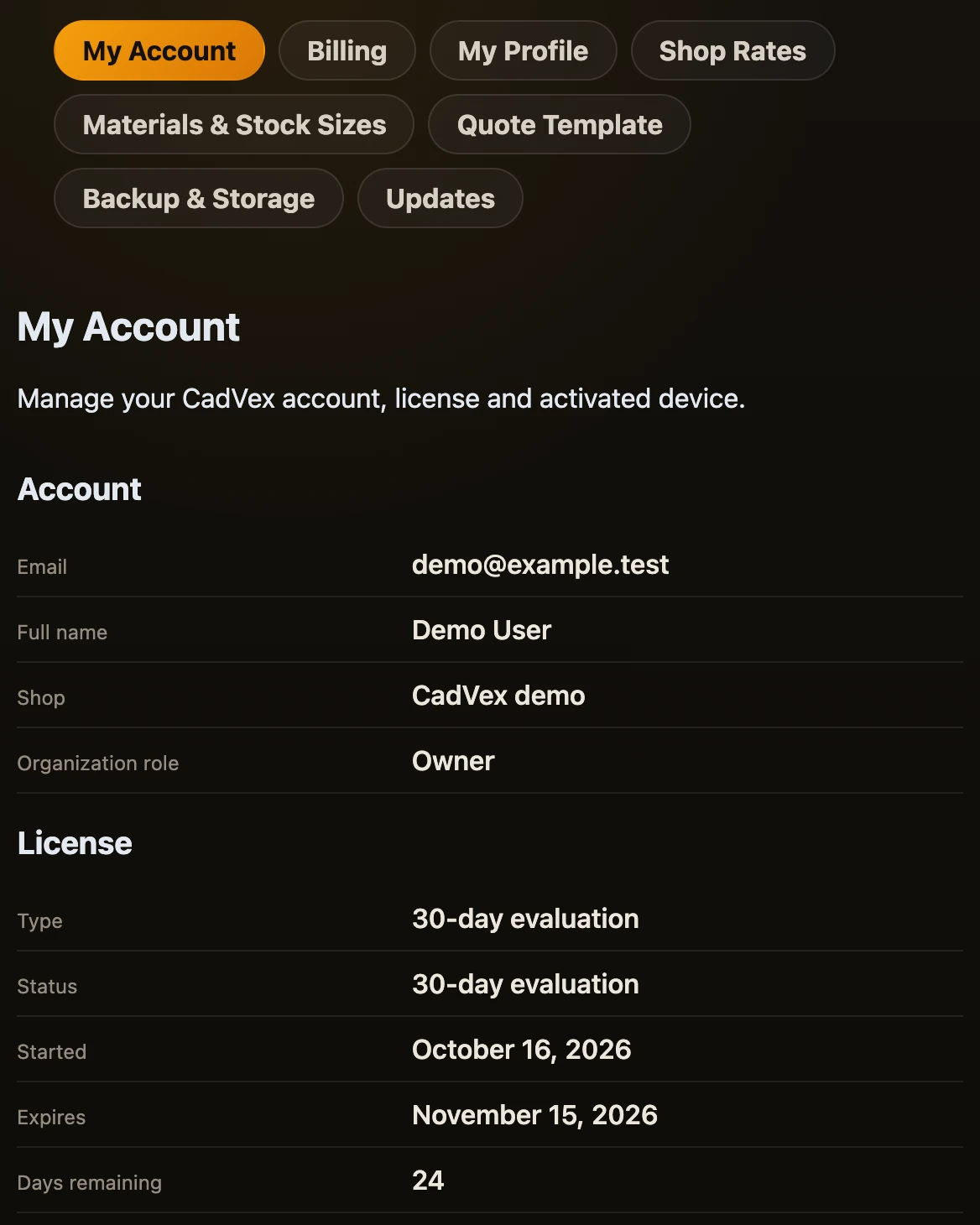
| My Account | Desktop | Your account, license, this computer, updates and privacy. Refresh license, Deactivate this device or Activate this device, Sign out. |
| Billing | Both | Cloud: your billing status, usage this period and billing history, with Set up billing, Update payment method (when a payment is overdue) or Manage billing. Desktop: your current plan, with Choose a plan or Manage billing, which open in your browser. |
| My Profile | Both | Your details and your shop details: currency, language, units. Save My Details, Save Shop Details. |
| Shop Rates | Both | Rate profiles with machines, rates and markup. New Profile, Duplicate, Rename, Save Profile, Delete, Set as Default. |
| Materials & Stock Sizes | Both | Your materials and stock sizes beside CadVex's own. + Add Material, + Add Stock, Import shop materials, Clear shop list. |
| Quote Template | Both | Your letterhead PDF and a six-step editor to place the fields. Generate test quote, Save Template. |
| Team | Cloud | Members and invitations. Invite a member, Send invite, Copy, remove a member, revoke an invite. |
| Delete Shop Data | Cloud | Erase all RFQs, parts, quotes and stock. Type your shop name, then Erase all shop data. Administrators only. |
| Backup & Storage | Desktop | Backups and disk space. Create backup, Restore backup, automatic backups, Clean temporary files, Export diagnostic report. |
| Updates | Desktop | Installed version and new versions. Check for updates, Update CadVex, What's new in this update. |
Banners and reminders
| Banner | Where | What it means | What to do |
|---|---|---|---|
| "CadVex currently assumes your shop has every machine type…" | Both | You have not saved your machines list yet. | Set up machines or Not now. |
| "Your CadVex Desktop evaluation ends in … days." | Desktop | Reminder 7, 3 and 1 day before the end of the evaluation. | Choose a plan. |
| "CadVex Desktop is read-only" and similar | Desktop | You cannot start new analyses: evaluation over, license not checked, or device deactivated. | Manage account or Activate device. |
| "CadVex was updated to …" | Desktop | Shown once after an update. | What's new or Dismiss. |
| "Analysis in progress" | Desktop | You are closing Desktop while a part is being analyzed. | Keep CadVex open or Close anyway. |
| "CadVex was updated" | Cloud | We released a new version while your page was open. | Refresh. |
| "CadVex needs a reload" | Cloud | Something on the page failed after it had been open for a while, often after an update. Saved analyses and quotes are kept. | Reload. |
Quick guide (Cloud)
What it shows: during the Free Evaluation, a short four-step tour the first time you arrive: New RFQ, Analysis History, Quote History and Settings, each pointed out in the menu.
How it works: Next, Back, Skip guide, or Start using CadVex at the end. Reopen it any time with Quick guide at the bottom of the menu.
Sign-in and start-up screens
Cloud
- Log in and Start free: sign in with your email and password or with Google, or create an account. See Getting started.
- Check your inbox / Email verified: after sign-up, verify your email address with the link we send, then Continue to shop setup.
- Review what changed: when our terms change, CadVex asks you to accept the new version before you continue.
- We couldn't load your shop / We couldn't restore your session: CadVex could not reach your account. Try again, or Return to sign in.
- My CadVex (your account page on cadvex.com): Open Cloud, Get Desktop and Download the installer.
Desktop
- Opening CadVex Desktop…: shown while the app starts.
- Sign in to CadVex: Sign in with your browser, or get a code by email. New accounts then see Your details, Your shop and Activate this device. See Install and activate Desktop.
- CadVex data could not be opened: Desktop could not open its data and stopped without changing anything. Restore from backup, Try latest automatic backup, Export diagnostic report or Exit CadVex. See Troubleshooting.
Back to the user guide contents.