CadVex user guide · Chapter 6
Routes and quantities
A route is the set of machines and setups used to make the part. CadVex picks the cheapest one your shop can run at the quantity you quote. You can pick another.
The same part can often be made in more than one way. A turned part with a few flats can go on a lathe and then a mill, or on a turn-mill in one go. A prismatic part with features on several sides can take several setups on a 3-axis mill, or fewer on a 5-axis. Each way is a route.
The route you choose changes the setups, the minutes and the price. This chapter explains how CadVex chooses it and how you take control.
What a route is
A route is a machine type plus the setups on it. CadVex names routes like this:
- 3-axis milling
- 4-axis milling
- 5-axis (3+2)
- Lathe + mill
- Turn-mill / live tooling
- Turning, in one setup or two setups
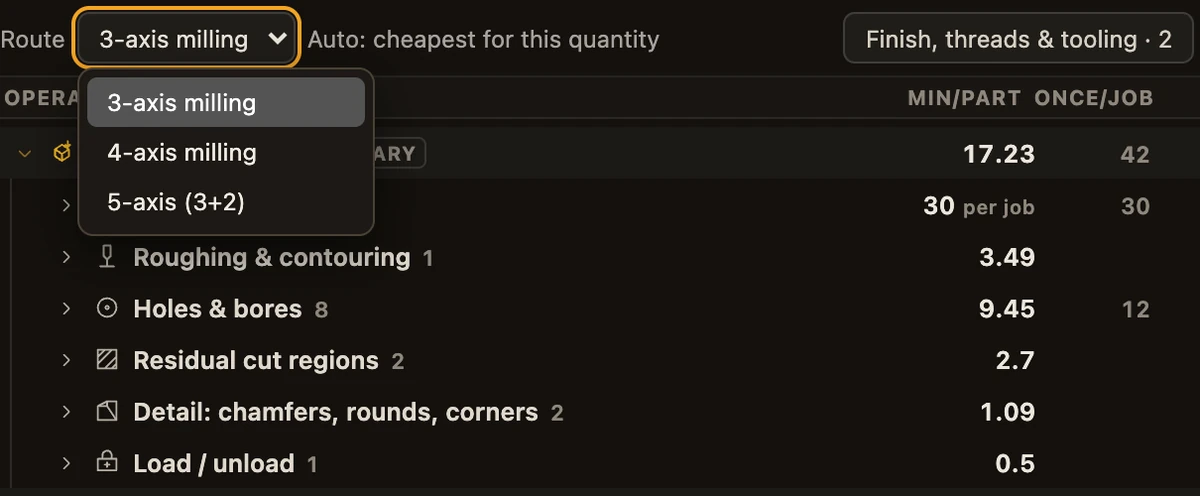
You see the current route at the top of the machining plan, in the Route selector.
How CadVex picks the route
CadVex prices every route a job-shop estimator would consider for the part, and keeps the cheapest one your shop can run.
- Your machinesOnly the machine types you ticked, with a rate
- Routes that fitThe ways an estimator would consider for this part
- Price each oneAt the calculated values, at this quantity
- Keep the cheapestOn a tie, the route with fewer setups wins
A few things to know:
- Only your machines count. A route is used only when every machine it needs is ticked in your machines list and has a rate.
- Until you set your machines, CadVex assumes you have them all. The plan then says "Assuming all machines · Set your machines". Click the link to tick the machines you really have.
- Your edits do not steer the choice. Routes are compared at the values CadVex calculated, so a line you edited does not make one route look cheaper than another.
- Turned parts go on a lathe or a turn-mill. A mill is used for them only when your shop has no lathe of any kind.
- Milled parts go on a 3-axis mill. A 4-axis or 5-axis (3+2) route is also considered when several directions could be done in one setup.
If the route a price uses needs a machine your shop has not ticked, CadVex says so above the plan and at the top of the estimate's Assumptions & Warnings: "This price uses a … your shop has not ticked in Machines in your shop. Tick it, or choose another route."
Quantity changes the route
The cheapest route at 1 part is not always the cheapest at 500. A route with more setup time but faster cycles wins at high quantities. So CadVex chooses the automatic route again each time the estimate is updated.
- While the route is automatic, the plan says "Auto: cheapest for this quantity".
- A part that comes from an RFQ starts at the quantity in the RFQ. A part analyzed on its own starts at 1.
- You change the quantity in Cost Analysis, step 7 Setup & Quantity.
When a new quantity moves the part to another route, the plan shows a notice, for example "Route changed to 5-axis (3+2): cheaper at qty 200". If a route was dropped because your shop does not have a machine it needs, the notice says so and names the route used before.
Both notices have an Undo button. Undo puts back the previous route, with your edits, and fixes it there. Close the notice with ×.
Choose a route yourself
To use another route:
- Open the Route selector at the top of the machining plan. It lists the routes your machines can run.
- Pick a route.
The route you pick is now fixed. It stays the same at any quantity, until you change it again. To let CadVex choose again, open the selector and pick Back to auto.
When you switch routes, most of your edits follow:
- Edits on features (a hole, a pocket, a chamfer) follow the feature to the new route.
- Edits tied to a setup do not, when the new route does not have that setup. That covers fixturing and load/unload time on that setup, manual lines added to it, and a group total typed on it.
CadVex tells you how many edits it could not carry over, for example "2 edits tied to removed setups were not carried over." Click Undo to go back to the route you had.
Compare two routes
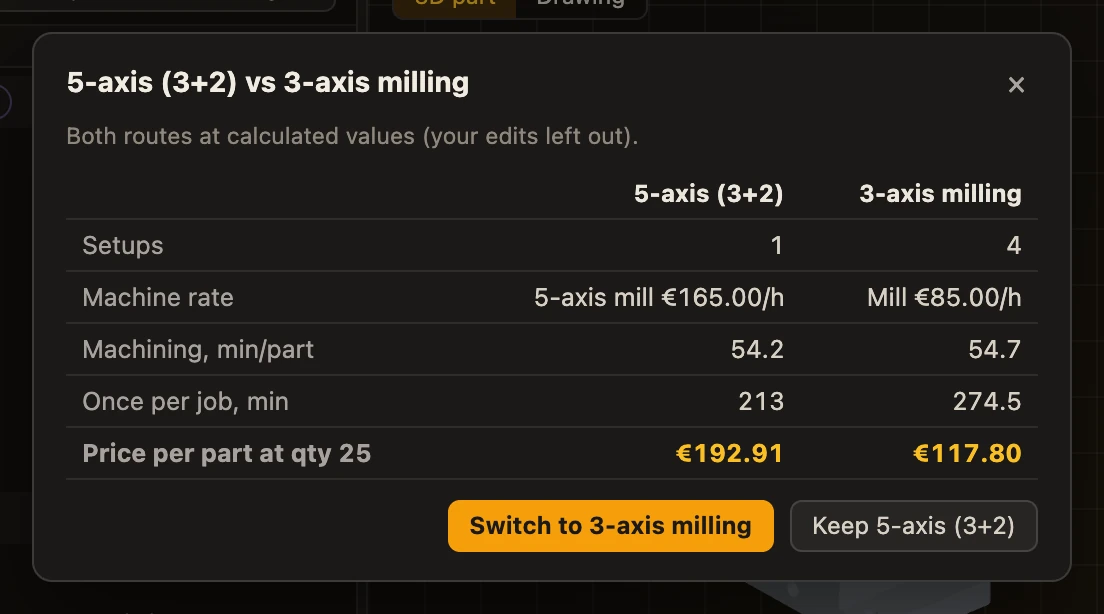
When a cheaper route exists, a small chip appears on the first setup of the plan.
- If you picked the route yourself and your shop can run a cheaper one, the chip shows that route and how much less it costs per part.
- If the cheaper route needs a machine you have not ticked, the chip says "With a … : … per part". It is information only. CadVex never moves you to a machine you do not have.
Click the chip to open Compare machine routes. It puts the two routes side by side: setups, machine rate, machining minutes per part, minutes once per job, and the price per part at your quantity. Both routes are compared at the calculated values. If you edited the plan, a second line shows the prices with your edits.
Then choose:
- Switch to … to use the cheaper route,
- Keep … to stay on your route,
- Add it in Machines when the cheaper route needs a machine you have not ticked. This takes you to your machines list.
Quote several quantities
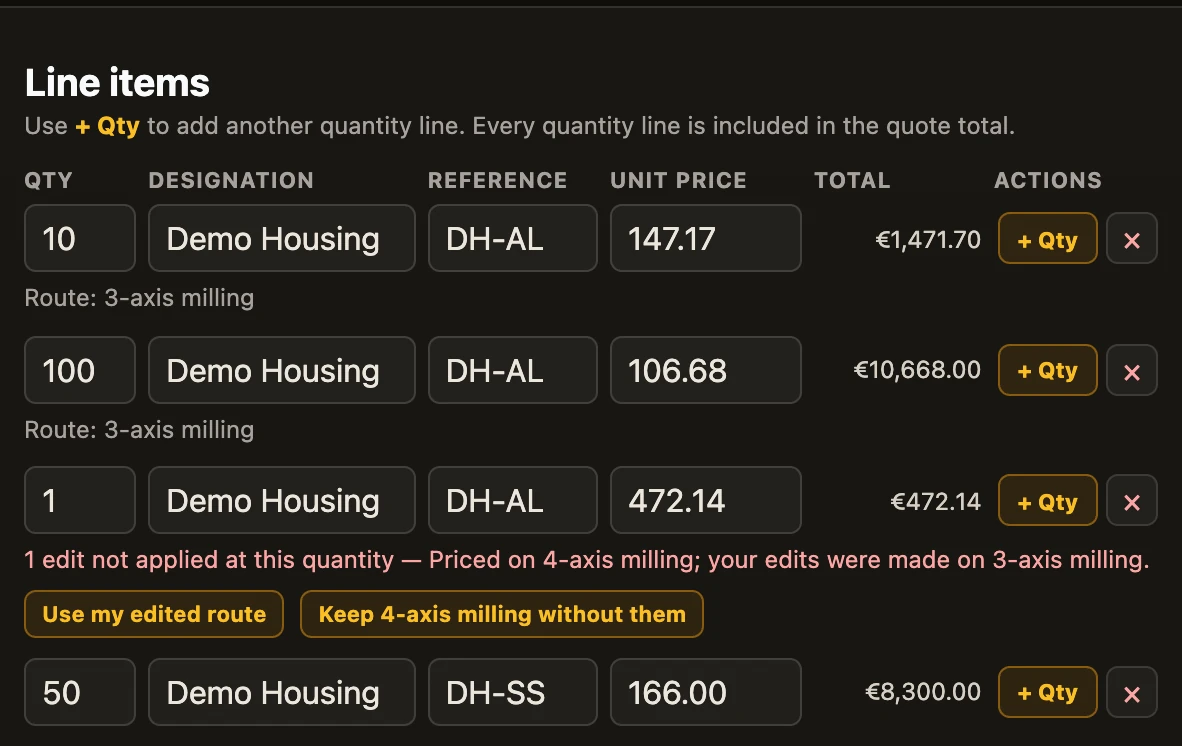
Customers often ask for prices at several quantities. In the quote, each part can have several quantity lines.
- On the quote screen, click + Qty on the part.
- Enter the quantity on the new line.
Each line is priced again at its own quantity. It is not the single-part price multiplied. Every quantity line is included in the quote total, so remove the lines your customer did not ask for. See Quotes.
In CadVex Cloud, the automatic route is chosen for each quantity line. When a part's lines do not all use the same route, each line shows its route under the designation, for example "Route: Turn-mill / live tooling". The quote PDF prints it too.
"Edits not applied at this quantity"
This message appears in a CadVex Cloud quote when two things are true:
- you edited the machining plan on one route, and
- at this line's quantity, the cheapest route is a different one, where some of your edits do not exist (for example, time you added to a setup that this route does not have).
The line then says, for example, "2 edits not applied at this quantity — Priced on 5-axis (3+2); your edits were made on 3-axis milling."
You choose what the line should do:
- Use my edited route prices this line on the route you edited, with all your edits. The line then shows "(your edited route)" and a Back to auto button.
- Keep … without them keeps the cheaper route and leaves those edits out of this line.
CadVex will not make the PDF or save the quote until you have chosen for every such line. This way a price never goes out without your edits by accident.
Next: DFM feedback.