CadVex user guide · Chapter 2
Install and activate CadVex Desktop
CadVex Desktop runs on your own computer. This chapter takes you from the download to your first analysis, and explains offline use, company networks and updates.
What you need
- Windows: Windows 11, 64-bit.
- Mac: a Mac with Apple silicon (M1 or later) and macOS 13.4 or later. Intel Macs are not supported.
- An internet connection to download, sign in and activate. After that, Desktop works offline for days at a time. See Work offline.
- A CadVex account. You can create it from the app.
Download the installer
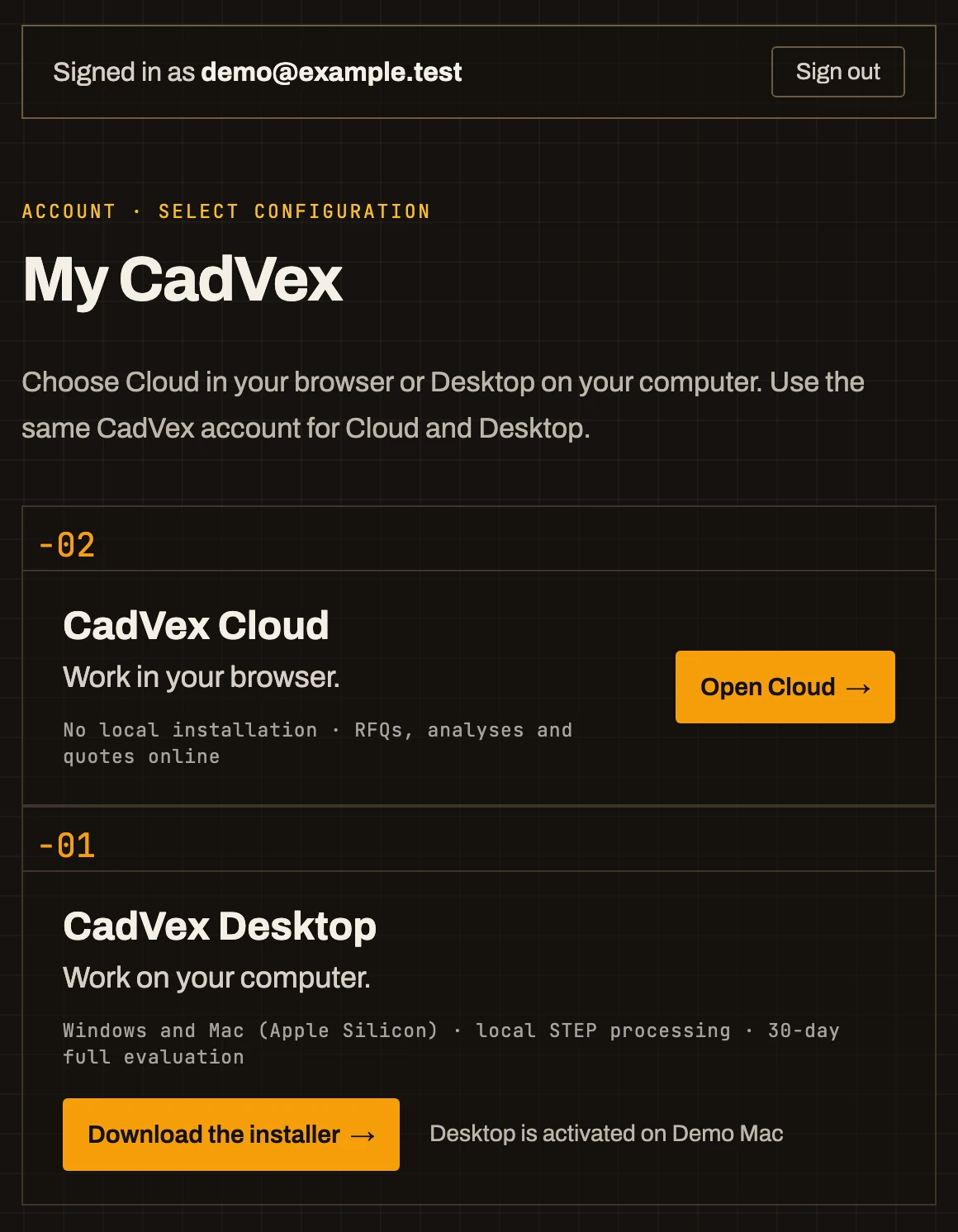
- Sign in on cadvex.com and open your account page.
- Click Download the installer. The website offers the right file for your computer.
Install on Windows 11
- Download the installer.
- If Microsoft Edge says the file "isn't commonly downloaded", this is normal for a new release: CadVex is digitally signed, but SmartScreen has not seen many downloads of this version yet. Open Downloads (Ctrl+J), click … next to the CadVex installer, choose Keep, then Show more if it appears, and Keep anyway. Check first that the publisher shown is Cadvex Technologies (OPC) Private Limited.
- Open the installer and follow the steps.
When you open the installer, Windows SmartScreen shows "Windows protected your PC". This is expected while a new release is still building up its reputation. Click More info, check that the publisher is Cadvex Technologies (OPC) Private Limited, then click Run anyway.
Stop and write to [email protected], or ask your IT team, if you see a malware alert, an unknown or different publisher, or a company policy block. Keep your security protection on.
CadVex Desktop installs for your Windows user, in your own app folder (%LOCALAPPDATA%\Programs\CadVex Desktop). It does not need administrator rights, and Windows does not ask for an administrator password.
Install on a Mac
- Download the installer (a
.dmgfile) and open it. - Drag CadVex Desktop into the Applications folder.
- Open CadVex Desktop from Applications.
The Mac app is signed with CadVex's Apple Developer ID and notarized by Apple, so macOS opens it after the usual question about apps downloaded from the internet. Click Open.
If you open CadVex straight from the installer disk, it asks Move CadVex Desktop to Applications? Click Move to Applications. This keeps it working after the disk is ejected, and in-app updates need it. Your sign-in and saved work are kept.
Sign in and activate
The first time you open Desktop, it asks you to sign in.
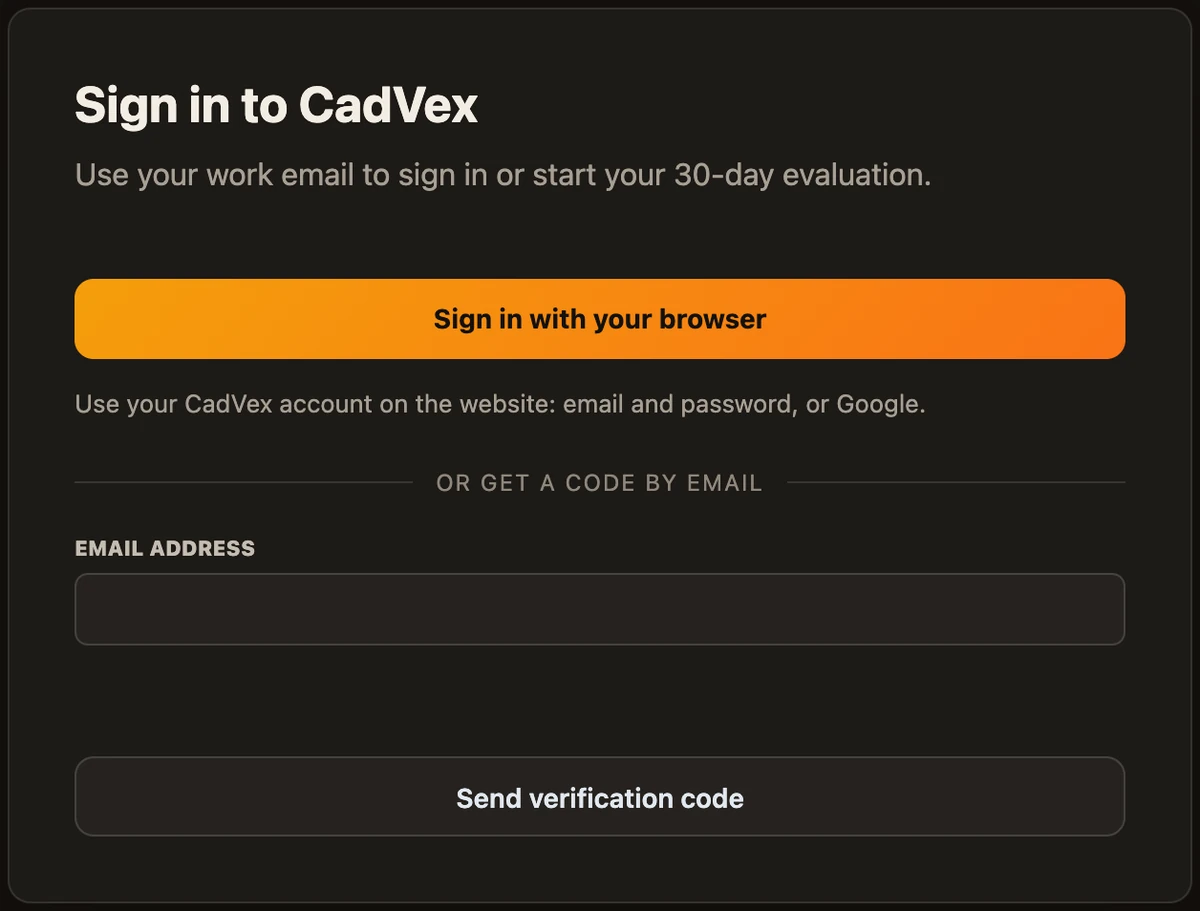
- Click Sign in with your browser. Your web browser opens the CadVex sign-in page. Sign in there with your email and password, or with Google, then confirm to return to Desktop.
- Or click or get a code by email, enter your work email and click Send verification code. Type the code from the email and click Verify and continue.
- If this is a new account, fill in Your details (your name, optional job title) and Your shop (shop name and currency).
- On Activate this device, give the computer a name and read the summary: 30 calendar days, no credit card, unlimited local analyses, one active device. Accept the terms and click Start 30-day evaluation.
The evaluation starts only when activation succeeds. If you already have a license, Desktop activates this computer on it instead.
If the computer already holds CadVex data from earlier use, activation links that data to your shop. Nothing is uploaded.
One license, one active computer
Each license covers one user and one active computer. To move to another computer, deactivate the old one first (Settings → My Account → Deactivate this device), then activate the new one. You can make up to two replacement activations in a rolling 30-day period. To bring your data along, see Move Desktop to a new computer.
Company networks and proxies
Desktop works through your company's proxy. It uses your computer's own network and proxy settings:
- the system proxy, including automatic proxy configuration and Windows' built-in proxy sign-in,
- the certificates your computer trusts, including those your company installs.
There is nothing to set in Desktop. If your web browser opens cadvex.com on this computer, Desktop can sign in too.
If Desktop cannot reach CadVex, it shows "CadVex Desktop could not reach the CadVex servers." with a short technical reason, and tries again by itself after 1, 2, 5, 10 and 15 minutes. If your company only allows approved sites, write to [email protected] and we will help you and your IT team.
A proxy that asks you to type a user name and password is not supported.
Work offline and the license check
Analyses, drawing reading and quotes run entirely on your computer. Desktop goes online only to sign in, to check your license and to look for updates.
- Desktop checks the license when it starts and every 12 hours while it runs, whenever it is online.
- After a successful check, you can work offline for up to 7 days with a paid license, or 3 days during the evaluation, within your license term.
- When that time is over, Desktop becomes read-only until it can check again. Your saved RFQs, results and quotes stay readable. Connect to the internet and open Desktop; the check runs by itself. You can also click Refresh license in Settings → My Account.
Setting the computer's clock back does not extend offline use; Desktop then asks to go online.
Update Desktop
Desktop looks for new versions by itself when you are online: about 20 seconds after it starts, then every 6 hours while it runs, and when the computer wakes from sleep. When one is ready:
- a dot appears on Settings in the menu,
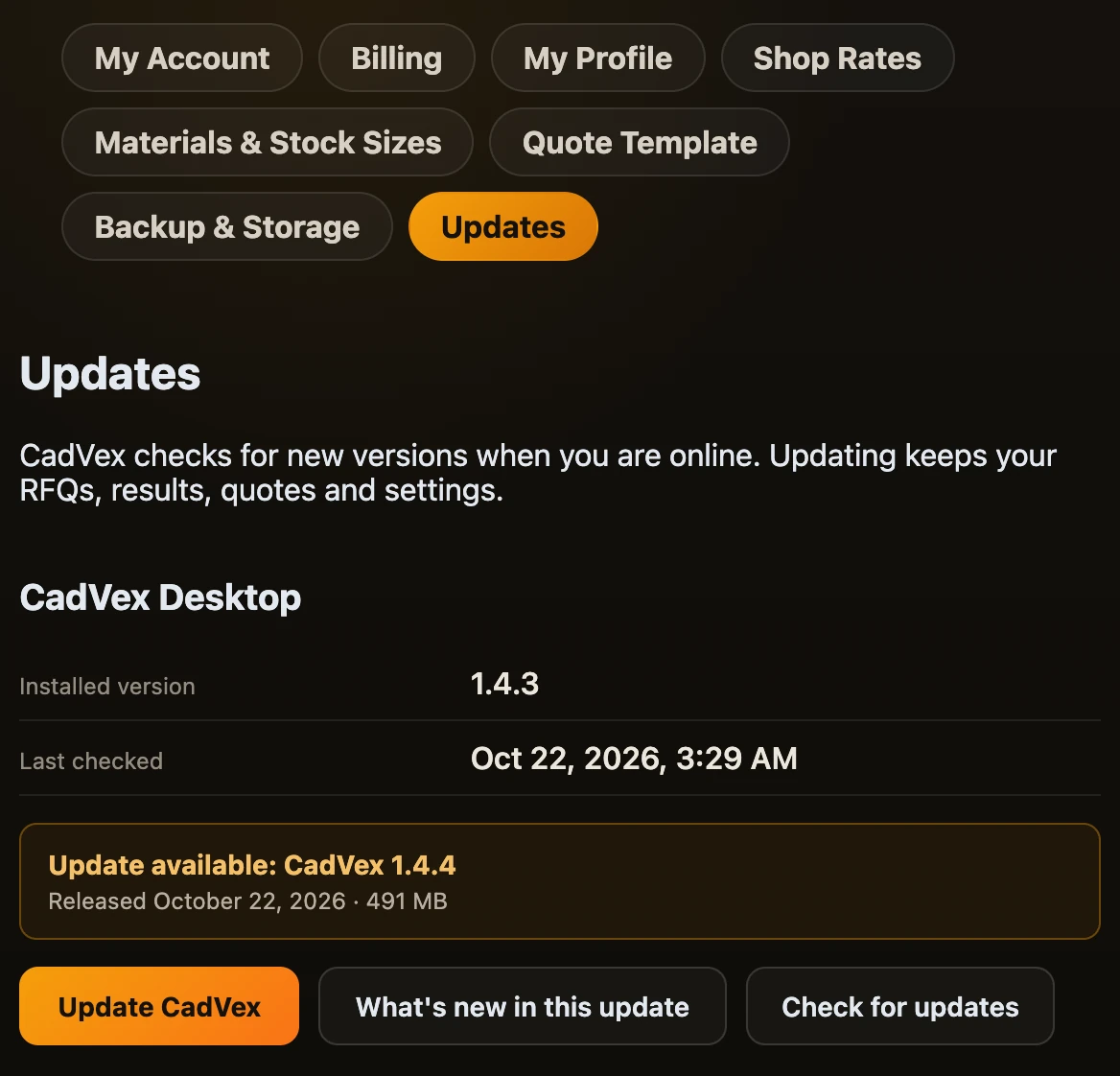
- Settings → Updates shows "Update available" with the version, and a link to What's new in this update.
To update:
- Open Settings → Updates.
- Click Update CadVex. Desktop downloads the update, checks its signature, then installs it and restarts.
Updating keeps your RFQs, results, quotes and settings. After the restart, a notice tells you the new version and offers What's new.
You can check by hand with Check for updates.
When an update is required
Sometimes an older version can no longer start new analyses. Desktop then says "CadVex Desktop must be updated". Your saved RFQs and finished results stay available. Update from Settings → Updates, or download the latest installer from your account page.
Perpetual licenses and updates
A Perpetual license includes updates and support for 24 months. After that, the version you have stays yours, and Desktop tells you when a newer version is outside your update period: "Your license includes updates released until …".
If an update fails, see Troubleshooting.
Next: Set up your shop.