CadVex user guide · Chapter 7
DFM feedback
The DFM Feedback tab lists the features that make the part harder, slower or riskier to machine. Each card says what was found, where it is, and what could be changed.
DFM stands for design for manufacturing. CadVex checks every part for features that are hard to machine as drawn: sharp inside corners, deep holes, thin walls, areas a tool cannot reach, and more.
The checks are the same in CadVex Cloud and CadVex Desktop. They do not stop you from quoting. They help you price the risk, ask the customer the right question, or suggest a change.
Open the DFM feedback
- Open a part from your RFQ or from Analysis History.
- Click the DFM Feedback tab.
The 3D part stays on the right. The feedback is on the left.
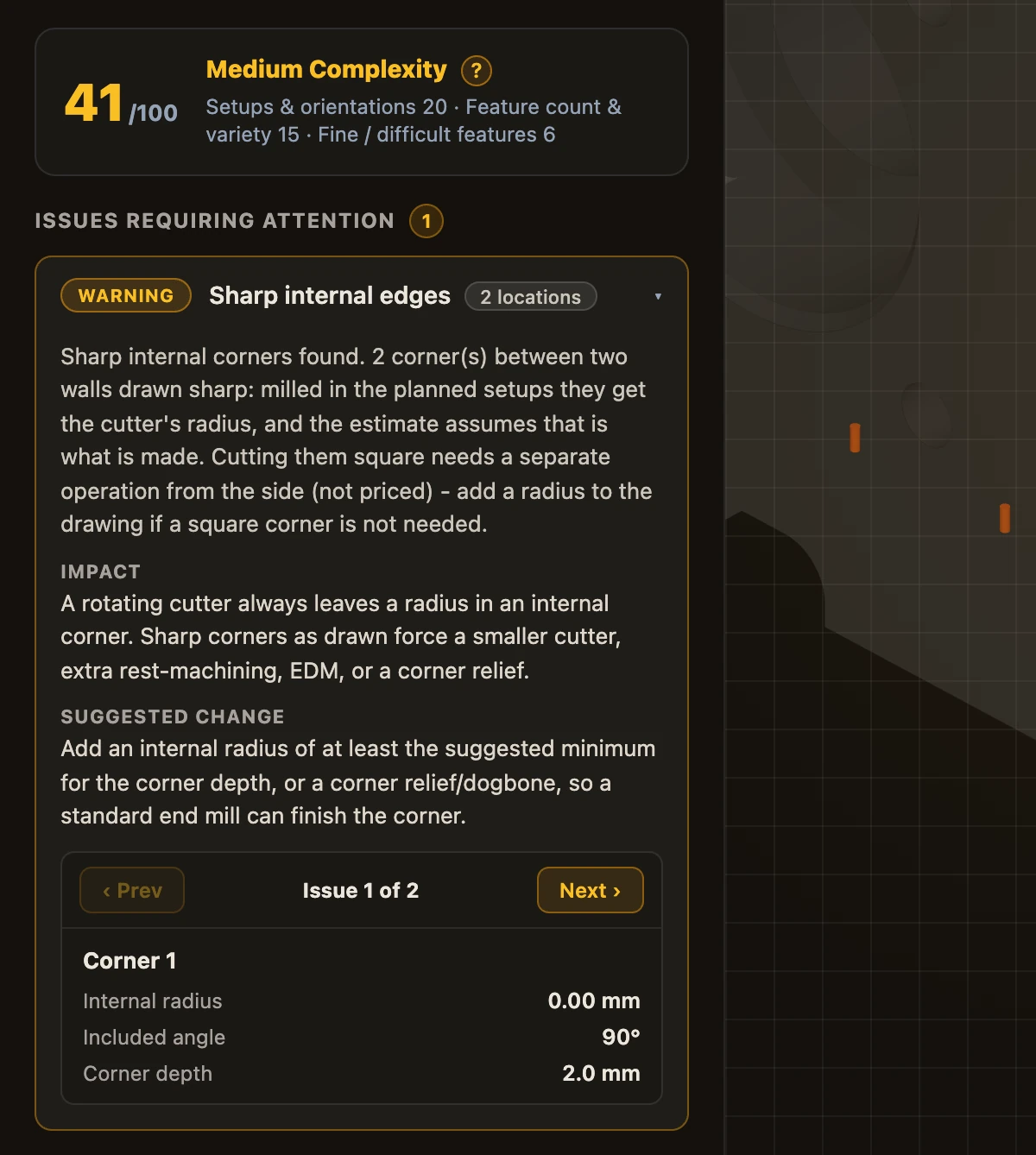
How the page is laid out
From top to bottom:
- Complexity score. A score out of 100 with a level: low, medium or high complexity, or not machinable. The line under it names what adds the most. Click ? to see which parts of the design the score is made of. The score follows the material you choose in Cost Analysis.
- A red banner, only when the part has a fully enclosed cavity: "NOT MACHINABLE AS DESIGNED".
- Issues requiring attention. The Critical and Warning cards, worst first. The badge counts the cards. If there are none, CadVex says "All manufacturability checks passed for this part."
- Notes. The Informational cards.
- Checks passed. A closed list of the checks the part passed. Click it to open it.
Severity levels
| Level | What it means | What to do |
|---|---|---|
| Critical | The part cannot be made as drawn, or a feature is very likely to fail. | Talk to the customer before you quote. |
| Warning | The part can be made, but this feature adds time, special tools or risk. | Check the price covers it, or suggest a change. |
| Informational | Worth knowing; usually no change needed. | Read it, and plan for it on the shop floor. |
A card takes the level of its most serious location.
Find a problem on the part
- Click a card to open it. Every location of that problem lights up on the 3D part, and the view moves to the first one while keeping the whole part in frame.
- Use ‹ Prev and Next › to step through the locations ("Issue 2 of 5").
- Each location has a name, such as "Corner 1" or "Wall 2", and the measurements that triggered it.
- Click the card again to close it and clear the highlight.
An open card shows three things: the message, the Impact on the job, and a Suggested change for the design.
A few cards light up nothing, because the problem is not one feature. Workholding is one example.
What each warning means and what to do
The titles below are the ones you see on the cards. Each check is described in plain words; the exact limits CadVex uses are not listed here.
Multiple floating bodies found
The file holds more than one separate solid. CadVex analyzes and prices them together, as they are; it joins nothing. The extra bodies are highlighted.
What to do: if it is one part, ask for a file where the bodies are joined. If it is several parts, ask for one file per part and analyze each one on its own.
Sharp internal edges, or corner radius too small for its depth
An inside corner that a rotating cutter cannot make as drawn: a corner with no radius at all, or a radius that is small for how deep the corner is. CadVex also flags corners that the planned setups will leave with the cutter's radius.
What to do: suggest an inside radius the customer can accept, or a corner relief (dogbone), so a standard end mill can finish the corner. If the corner must stay sharp, plan the extra operation and price it yourself.
Not machinable as designed
A cavity closed on every side, which no tool can reach from any direction. This card is always Critical, and the red banner appears too. The rest of the part is still estimated; the closed cavity is not.
What to do: ask the customer to open the cavity to a face a tool can reach, or to split the part into pieces joined after machining.
Machining access concern
Areas that look covered from every direct approach: undercuts or shadowed geometry. The estimate includes an allowance for this special access.
What to do: ask whether access can be opened from another face, or a relief added. Otherwise, check that the allowance matches how your shop would do it.
Special tooling required
A feature you can reach, but whose shape needs a special cutter or process instead of an ordinary end mill. The estimate includes an allowance.
What to do: confirm you have the cutter or the process, or suggest a simpler profile.
Machining access review
CadVex could not confirm a standard tool approach for a feature. This does not say the feature is impossible to reach. It asks a person to look.
What to do: check the setup and the tool approach yourself before quoting.
Additional setup or reorientation
Some features can only be machined after turning the part over, or with a tilted fixture. Those setups are counted in the estimate.
The card follows the setups of your Machining Plan. Each feature shows the plan setup it is machined in, for example "Machining Plan setup: 3 · -X", and a tilted fixture is mentioned only when the plan uses one.
What to do: plan the extra setup. If a feature could be lined up with an existing direction, suggest it.
5-axis consolidation opportunity
Several separate 3-axis setups could be done in one go on a 5-axis (3+2) machine. The number of setups on the card is the number in the 3-axis Machining Plan, and the highlighted features are the ones that force the extra setups. This is a suggestion only. The part is fully machinable on the 3-axis plan.
What to do: if you have a 5-axis machine, compare the routes in the machining plan.
Groove manufacturability
A groove that is wider at the bottom than at the opening, a groove with negative draft, a turned groove that is deep for its width, or a groove that needs special grooving tools.
What to do: suggest a shallower or wider groove, or removing the undercut. Or confirm you have the grooving tool.
Internal grooves
Grooves inside a bore. They need an internal grooving tool that fits the bore. The groove is priced as normal grooving.
What to do: no design change needed. Check you have an internal grooving tool for that bore, groove width and depth.
Turned groove root corners
Lathe grooves drawn with sharp bottom corners. Standard inserts leave a small root radius, which is normal practice. This has no cost impact.
What to do: nothing, unless the customer needs a specific root radius for fatigue or a fit. Then it should be on the drawing.
Thin walls
Walls thinner than the material can safely hold while being cut. The card becomes Critical when a wall is far too thin. The estimate adds careful finishing for thin walls, and in severe cases a fixture cost.
What to do: ask whether the wall can be thicker. If not, plan support or fixturing and slower cuts.
Tall thin walls
Walls that are thick enough, but tall and unsupported, so they chatter and bend when cut.
What to do: suggest a thicker or shorter wall, or a rib to a nearby wall. If it must stay, ask for a looser thickness tolerance on it.
Sharp feather edges
Outside edges where two faces meet in a sharp wedge. They burr and chip easily. They are not priced.
What to do: suggest breaking the edge with a small flat, a chamfer or a radius.
Hole depth-to-diameter ratio
Drilled holes that are deep for their diameter, or bores that need a long boring bar. Hole time rises in the estimate for deep holes.
What to do: suggest a shallower hole or a larger diameter, or drilling from both sides.
Minimum hole size
Holes so small they need fragile micro-drills.
What to do: ask whether the hole can be larger.
Interrupted hole cuts
The drill passes through another cavity or gap on the way, for example a cross-drilled hole. Hole time rises in the estimate for interrupted cuts.
What to do: plan deburring of the crossing edges. Drill before the crossing feature is opened when the sequence allows.
Pocket depth-to-width ratio
A milled pocket or slot that is deep compared with its opening, so it needs long-reach tools.
What to do: suggest a shallower or wider pocket, or opening access so a shorter, stiffer tool reaches the floor.
Minimum pocket width
A pocket or slot too narrow for a practical cutter.
What to do: ask whether the slot or pocket can be wider.
Workholding surfaces
CadVex found no flat face to clamp and no round diameter to hold in a chuck. Nothing is highlighted on the part.
What to do: plan soft jaws or a special fixture, or suggest a flat clamping face or datum.
When DFM feedback is unavailable
Sometimes the checks cannot finish for a part. CadVex then shows "DFM unavailable for this part" and no cards at all, so that no check is shown as passed when it was not run. The cost estimate is still there; review it with extra care before you quote.
On old analyses, CadVex may ask you to run the analysis again to see the full complexity breakdown. See Troubleshooting.
Put DFM notes in your quote
You can send the important findings to your customer with the quote:
- On the Generate quote step, tick Attach a manufacturability report.
- Tick the findings to include. Only Critical and Warning findings are offered, one row per location.
- Click Add comment to write a sentence for the customer, for example the change you suggest.
The report prints after the quote, on its own pages titled "Manufacturability Review". Each finding has a 3D picture of the feature, its name and your comment. See Quotes.
Next: Quotes.