CadVex user guide · Chapter 1
Getting started
CadVex turns a STEP file into a machining plan, DFM feedback and a quote on your letterhead. This chapter helps you choose Cloud or Desktop and get your first part through.
CadVex is quoting software for CNC machine shops. You upload the customer's STEP file, and CadVex:
- plans the setups on the machines you have,
- lists the minutes behind every feature, at your shop rates,
- flags the features that are hard to machine (DFM feedback),
- builds the quote on your own PDF letterhead.
You can change any number before the price goes out. CadVex shows its work; it does not hide the price behind a black box.
Cloud or Desktop?
CadVex comes in two forms. Both have the same screens, the same machining plan, the same DFM checks and the same quotes. The difference is where the work happens and how you pay.
CadVex Cloud
- Runs in your web browser. Nothing to install.
- Your work is stored in your CadVex account, and your team can share it.
- Attached drawings are read with Anthropic's AI (Claude).
- Free evaluation: 5 successful part analyses. Then you pay per successful analysis.
CadVex Desktop
- An app for Windows 11 (64-bit) and Apple silicon Macs (M1 or later, macOS 13.4 or later).
- Parts, drawings and quotes stay on your computer. Drawings are read on your computer.
- Unlimited analyses. Free 30-day evaluation, then Monthly, Annual or Perpetual license.
- Works offline, with a license check from time to time.
Choose Cloud if you want to start in a minute, work from any computer, or share RFQs with your team.
Choose Desktop if your customers do not allow their files on outside servers, if you quote a lot of parts, or if you often work without a good connection.
Intel Macs are not supported by CadVex Desktop. Use CadVex Cloud on those.
Prices are on the pricing page. The product chooser compares the two side by side.
Create your account
One CadVex account works for both products. Use the same email address for Cloud and Desktop.
To start with Cloud:
- Go to Start free and choose Cloud.
- Enter your name (first and last name), your shop or company name, your email and a password of at least 8 characters. A meter under the password shows how strong it is.
- Complete the security check if one appears.
- Click Start free — no credit card. By creating the account you accept the Terms of Service, including the Free Evaluation terms, and the Privacy Policy; the line under the button links to them.
- Open the email from CadVex and click the link to verify your address.
- Click Continue to shop setup and finish the shop details.
You can also sign in with Google.
When your shop is ready, CadVex loads a fictional demo material catalog, common stock sizes and a demo quote letterhead, so you can reach a real estimate straight away. Replace them with your own when you are ready. See Set up your shop.
To start with Desktop: download the app from your account page and sign in from the app. See Install and activate Desktop.
Free evaluations
Cloud gives each shop 5 successful part analyses, with no credit card. Failed analyses are not counted. After the 5 analyses, you set up billing and pay for each successful analysis.
Desktop gives you a full 30-day evaluation:
- 30 calendar days, with unlimited analyses on your computer,
- no credit card,
- one active computer,
- the 30 days start when you activate the app on your computer, not when you create the account.
CadVex reminds you 7 days, 3 days and 1 day before the end. When the evaluation ends, Desktop becomes read-only: you can still open your saved RFQs, results and quotes, but you cannot start new analyses until you choose a plan. Click Choose a plan in the app; the plans page opens in your browser.
Your first analysis
- Set up your shopCurrency, rates, machines
- Start an RFQCustomer and reference
- Upload the partSTEP file, drawing, quantity
- Check the resultsPlan, DFM, cost
- Build the quoteLines, PDF, save
- Set up your shop. In Settings, choose your currency, enter your hourly rates and tick the machines you have. Ten minutes here makes every estimate yours. See Set up your shop.
- Start an RFQ. Click New RFQ. Every customer field is optional; you can fill them later.
- Upload the part. Add the STEP file, the drawing if you have one, the quantity and the material. See Run an analysis.
- Check the results. Look at the machining plan, the DFM feedback and the cost. Change anything that does not match your shop.
- Build the quote. Add quantities, check the prices, preview the PDF and save. See Quotes.
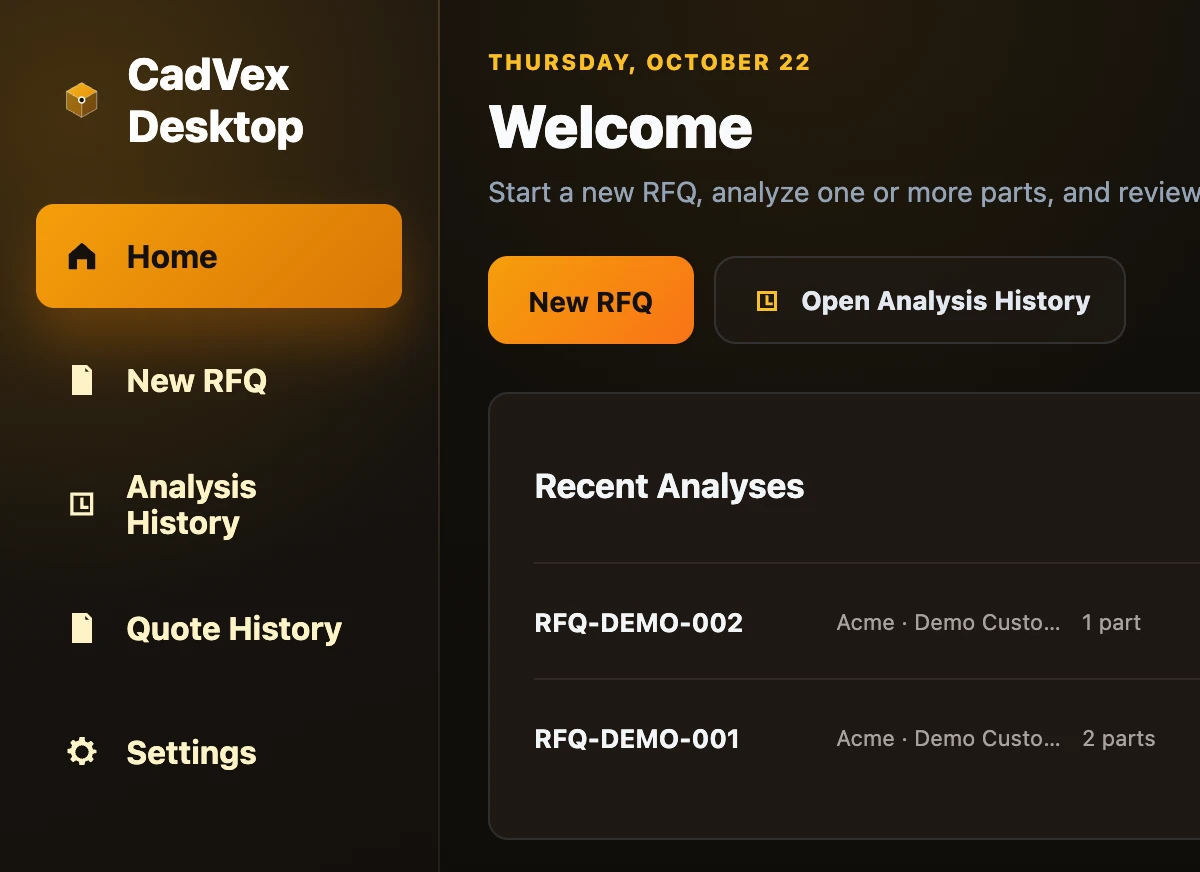
The main menu
The menu on the left is the same in both apps:
| Menu item | What it is for |
|---|---|
| Home | Your recent analyses and the RFQs you have not finished. |
| New RFQ | Start a request for quote: customer, parts, review, quote. |
| Analysis History | Every RFQ you analyzed. Open one, quote it or delete it. |
| Quote History | Every quote you saved, its status, and your statistics. |
| Settings | Your shop: rates, machines, materials, stock sizes, quote template and more. |
Each screen is explained in Every screen, explained.
Next: Install and activate Desktop.