CadVex user guide · Chapter 5
The machining plan
The machining plan shows how CadVex would make the part: which machine, which setups, and the minutes behind every feature. You can change any of it.
The machining plan is where you check the estimate line by line. Every minute in the price comes from a line in this plan. If a line looks wrong for your shop, you change it, and the price follows.
The plan works the same way in CadVex Cloud and CadVex Desktop.
Open the machining plan
- Open a part from your RFQ or from Analysis History.
- Click the Cost Analysis tab.
- Click step 5 Machining Plan.
The screen splits in two. On the left is the operation tree. On the right is the 3D part. Drag the divider between them to give the tree more room. CadVex keeps that position while you work.
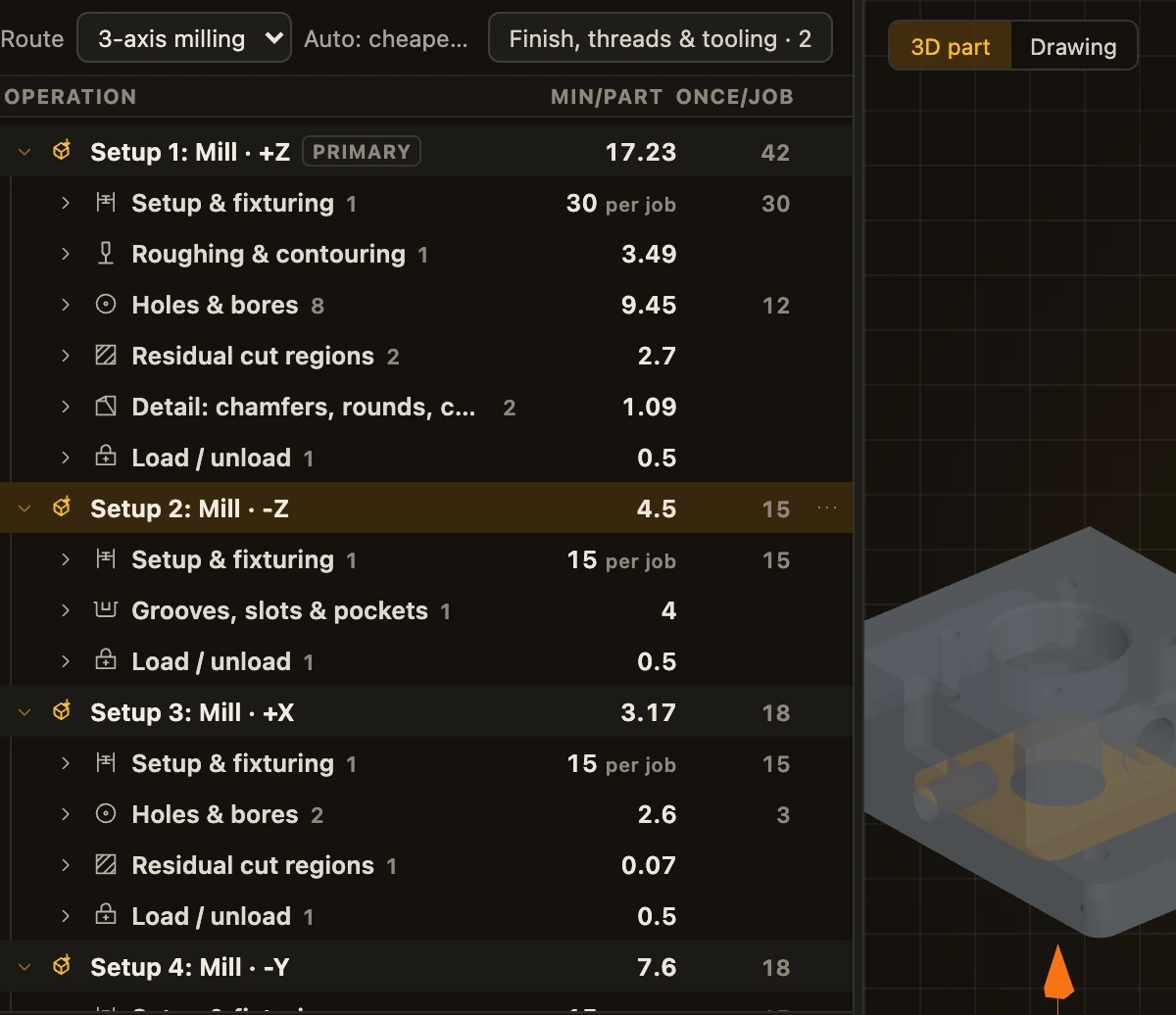
On this step the live estimate panel is hidden, so the tree has the full width. Save Analysis stays at the top of the screen.
How the plan is organized
The plan is a tree. You read it from the top down.
- Part
- Setup 1: machine and approach direction
- Group, for example Holes & bores
- Line: one feature or one task
- Member: one of several identical features
- Line: one feature or one task
- Group, for example Holes & bores
- Setup 2
- Whole part: work that is not tied to one setup
- Job (one-time): programming, first-article inspection
- Setup 1: machine and approach direction
- Setups are always open. Each label gives the setup number, the machine (lathe, turn-mill, mill, 4-axis mill or 5-axis mill) and the direction the tools come from. A setup can also be on a chuck, a 3+2 position, an angle fixture, a collet block or an indexer. One setup is tagged primary: the main clamping, facing the side most of the part's features are machined from. Work that belongs to no single setup is priced on the primary setup's machine, and the other setups are the extra setups the part needs. The primary setup is not always setup 1.
- Groups collect lines of the same kind: setup and fixturing, roughing and contouring, holes and bores, grooves, slots and pockets, special access, residual cut regions, details (chamfers, rounds, corners), load and unload, edge break and deburr, thin-wall finishing, tolerance and inspection, surface finish, threads, manual lines, programming and first-article inspection. Groups start closed and show how many lines they hold.
- Lines are single features or single tasks. A line that stands for several identical features opens into one row per feature.
- Whole part and Job (one-time) come after the setups. They hold work that is not done in one setup, and work that is done once for the whole order.
Some lines carry a small tag:
| Tag | Meaning |
|---|---|
| manual | A line you added yourself. |
| adjusted | An edit made in an older version of CadVex, before the tree existed. |
| threads panel | The minutes come from the thread specifications. Change them there, not in the tree. |
Read the minutes
The tree has two columns:
- min/part is the time each part takes. It repeats for every part in the order.
- once/job is the time spent once for the whole order, whatever the quantity. Programming and first-article inspection are typical once-per-job lines.
A line that only has once-per-job time shows it in the first column with the label "per job".
At the bottom of the tree, a status line adds it all up: machining minutes per part, minutes once per job, the quantity, the price per part, and how many edits you made.
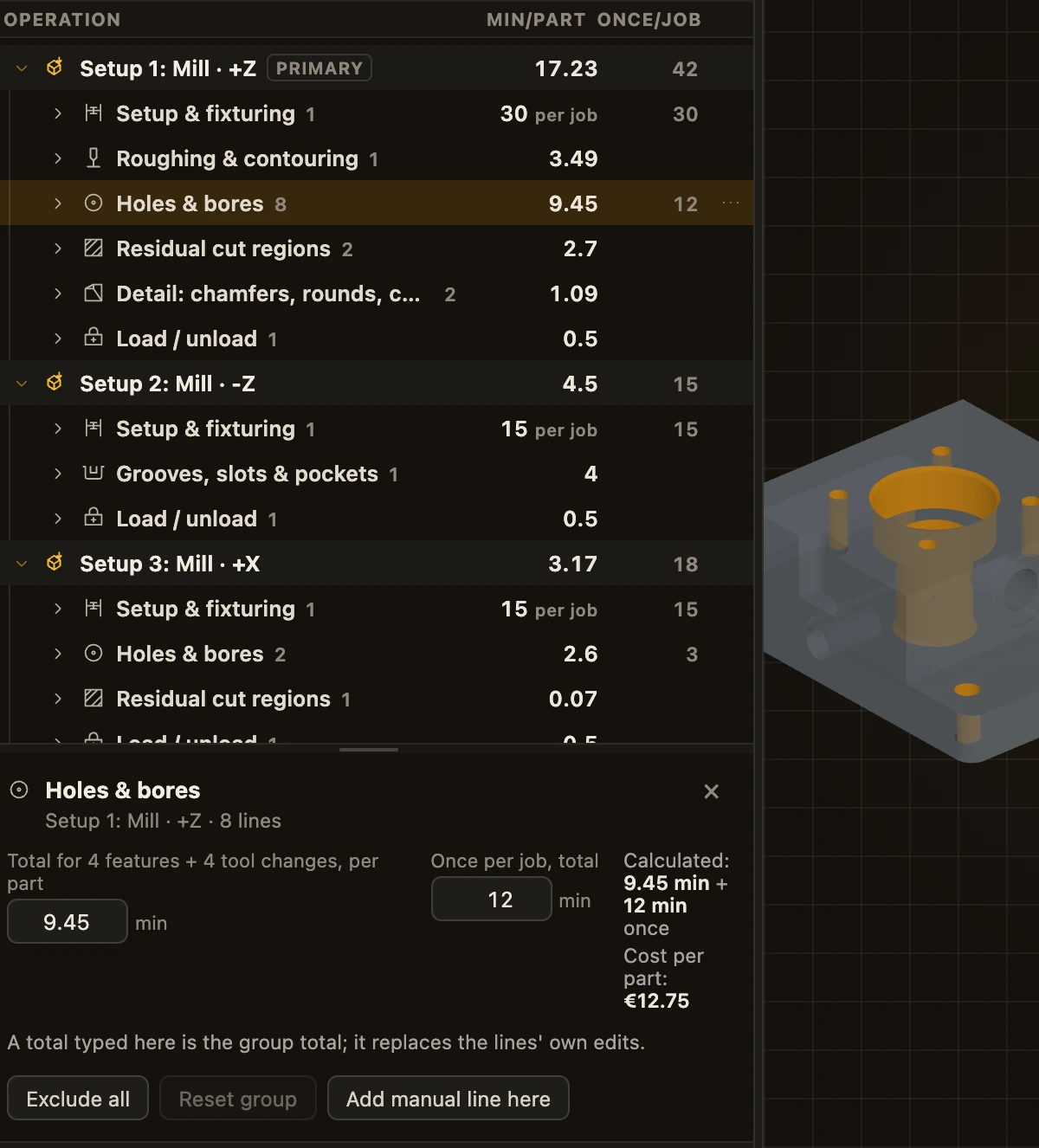
Click any line to see its details below the tree: its minutes, the value CadVex calculated, and what the line costs per part at the current quantity.
Change a value
To change the minutes on a line:
- Double-click the value, or select the line and press F2.
- Type the new value.
- Press Enter to keep it, or Esc to cancel.
You can also open the row menu with a right-click or the … button, then choose Edit minutes.
An edited value turns amber and shows a pencil icon. Hover over it to see the value CadVex calculated. To go back, choose Reset to calculated in the row menu, or Reset in the details panel.
You can also change a whole group at once. Select the group and type a new total in the details panel. CadVex spreads that total over the lines in the group. If you later edit one of those lines, the line edit replaces the group total.
Exclude and restore lines
When your shop will not do a task, exclude it instead of setting it to zero.
- Choose Exclude in the row menu. The line is struck through and its minutes leave the price.
- Choose Restore to bring it back.
- On a group, Exclude all and Restore all do the same for every line in it.
- Reset group puts every line of a group back to the calculated values.
- Reset all, at the bottom of the tree, removes every edit you made in the tree.
Add a manual line
Add a line for work CadVex does not plan, for example a reaming pass your customer asked for, or a special check.
- Right-click a setup, a group or a line, and choose Add manual line here. You can also select a setup and click Add manual line to this setup in the details panel.
- Give the line a name, for example "Ream Ø8 H7".
- Enter the minutes Per part, Once per job, or both.
- Click Add.
The line appears with the manual tag in the group Manual lines. Its minutes go into the price straight away.
Delete a line
Only manual lines can be deleted. Select the line and choose Delete line in the row menu or in the details panel.
Lines that CadVex planned cannot be deleted, because the plan would no longer match the part. Exclude them instead. You can restore them later.
See a line on the 3D part
The 3D view shows where each line is on the part.
- Hover over a row to light up its faces. Click the row to keep them lit. The rest of the part is dimmed.
- Click a setup to light up every face machined in that setup. An arrow shows the direction the tools come from.
- Groups, lines and single features light up their own faces.
- Some lines have no faces, such as load and unload, programming, inspection or a manual line. CadVex tells you so instead of lighting anything.
The camera does not move when you select a row. Use the view buttons to turn the part: Fit, +Z (top), −Z (bottom), −Y (front) and +X (right). Switch between the orthographic and the perspective view with the view toggle.
If you added a drawing to the part, the 3D part / Drawing switch shows the drawing beside the tree. Without a drawing, the Drawing button is greyed out. In Desktop, the Drawing button opens Desktop's Drawing view; 3D Model brings the plan back.
Settings outside the tree
Some inputs are not lines in the tree. Click Finish, threads & tooling above the tree to open them:
- fixture cost and special tooling,
- finish zones (+ Add finish zone),
- threads,
- treatment,
- part marking.
Thread lines in the tree say "Thread minutes come from the thread specifications." Click Open plan settings to change them.
Save your edits
Your edits belong to this analysis only. They do not change your Settings, and they do not change other parts.
- Click Save Analysis to keep them.
- When you move between parts of an RFQ with Back, Previous, Next or Finish review, CadVex saves for you. If that save fails, CadVex asks before you leave, so you do not lose your changes.
The other steps of Cost Analysis list what you changed in the tree, for example "Operation tree: 2 edited, 1 removed, 1 added".
Your edits are made on one route. If you later switch to another route, most edits follow; some cannot. See Routes and quantities.
Export the machining plan
Click Export machining plan, next to Save Analysis, to take the plan out of CadVex, for a spreadsheet, your ERP or your own records. The export is the estimate on screen, unsaved edits included. It holds the same data twice, as CSV files that open in Excel and as one JSON file:
- a summary: part, analysis date, quantity, route, material and stock, minutes per part and once per job, number of setups, and the price per part,
- one row per setup: machine, direction, minutes and cost per part, plus rows for the whole-part and job work,
- one row per line of the plan: group, name, number of features, minutes, whether you edited it, and its cost.
Cloud downloads one ZIP file. Desktop asks you to choose a folder and writes a new folder inside it; it never replaces an earlier export, and nothing is uploaded. A short README file in the export lists the files and their format.
Analyses made before the operation tree
Analyses saved with an older version of CadVex may not have an operation tree. CadVex then says: "This analysis was saved before the operation breakdown existed. Its saved price and your adjustments stay as they are here. To see the breakdown, upload the part again as a new analysis." See Troubleshooting.
A new analysis starts from CadVex's own values. The edits you made in the old analysis stay in it; they are not copied to the new one.
Next: Routes and quantities.