CadVex user guide · Chapter 4
Run an analysis
An analysis starts with a STEP file. Add the drawing and the part details, and CadVex plans the part, checks it for DFM issues and prices it at your rates.
Every analysis belongs to an RFQ (a request for quote). An RFQ can hold one part or many. You go through four steps:
- RFQ detailsWho the quote is for
- Upload partsSTEP, drawing, details
- Review partsCheck each estimate
- Generate quoteSee the Quotes chapter
Click New RFQ in the left menu to start.
In Cloud, CadVex first checks that you can analyze: your shop needs a currency, and once your free analyses are used, billing must be set up. If something is missing, a Before you start screen tells you what to do.
Step 1: RFQ details
Enter who the quote is for: customer name, company, email, reference or RFQ number, the date it is needed by, and notes. Every field is optional. You can fill them later, before you review the parts.
- In Cloud, CadVex suggests companies you quoted before as you type.
- In Desktop, pick a customer from your list with Select customer, or add one with + New customer.
Click Continue to upload parts →.
Step 2: Upload the STEP file
You add parts one at a time.
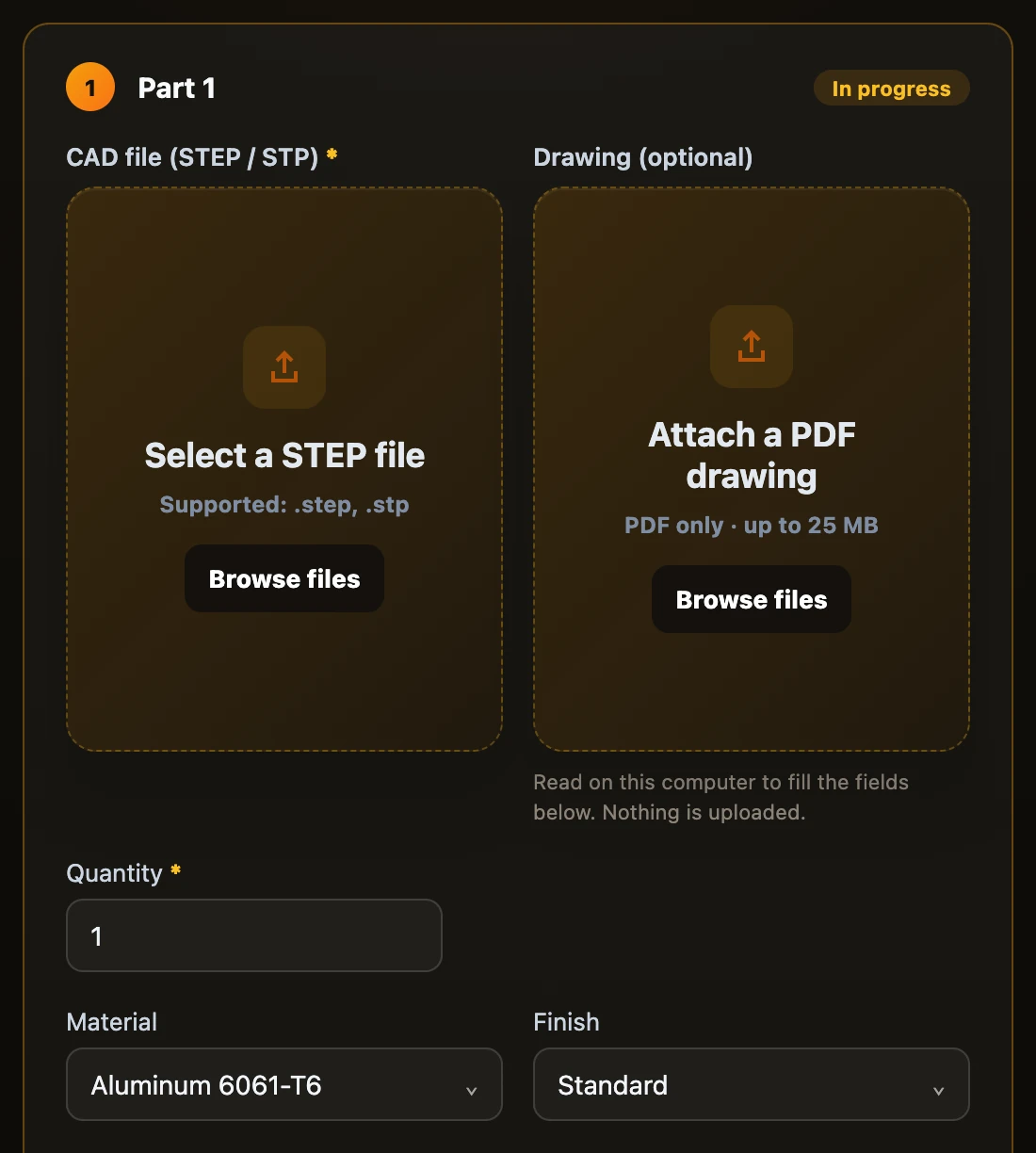
- Drop the STEP file on CAD file (STEP / STP), or click to browse. CadVex reads
.stepand.stpfiles. A file can be up to 100 MB, in Cloud and in Desktop. - Add the drawing if you have one (see below).
- Fill in the part details.
- Click Add part.
The analysis starts as soon as the part is added. You can add the next part while it runs. CadVex analyzes one part at a time; the others wait in line.
In Cloud, a note under the form tells you how many free analyses you have left, or what a successful analysis adds to your usage bill. Failed analyses are never charged.
The part details
These fields describe what the 3D model cannot show. Each one changes the plan or the price.
| Field | What it changes |
|---|---|
| Quantity | The quantity the part is planned and priced for. You can quote other quantities later. |
| Material | The material and its price. Required. It must have an engineering profile (see Materials). |
| Finish | A treatment or coating, or "As machined / not specified". |
| Smallest surface roughness | The finest surface finish asked on the drawing. |
| Threads | Whether the part has threads, and how many. You confirm their specifications later. |
| Tolerance | "Standard", or "Smaller than standard" with the tightest tolerance and the number of places it applies. |
| Part marking | Whether the part must be marked. |
In Desktop, tolerances tighter than standard go in a list, Tolerances tighter than standard. Click + Add tolerance, enter the dimension, its type (diameter, length, radius or bore), the tolerance (for example ±0.05, +0.1/-0.05 or H7), the units and how many places it applies. CadVex shows the ISO 286 grade (IT grade) for each row and highlights the fine grades, which need extra finishing and measuring. A tolerance that is standard or looser is not added to the list. In a metric shop, Desktop shows tolerances and roughness in mm and µm first, with the inch value in brackets.
Add a drawing
A drawing tells CadVex what the STEP file does not: material, finish, threads, tolerances. Adding it saves typing and catches requirements you might miss. The two products read drawings differently.
CadVex Desktop
- Reads the drawing on your computer. Nothing is uploaded.
- Works offline.
- PDF only, up to 25 MB.
CadVex Cloud
- Reads the drawing with Anthropic's AI (Claude).
- Needs an internet connection.
- PDF or image (PNG, JPG), up to 25 MB.
What Desktop reads on your computer
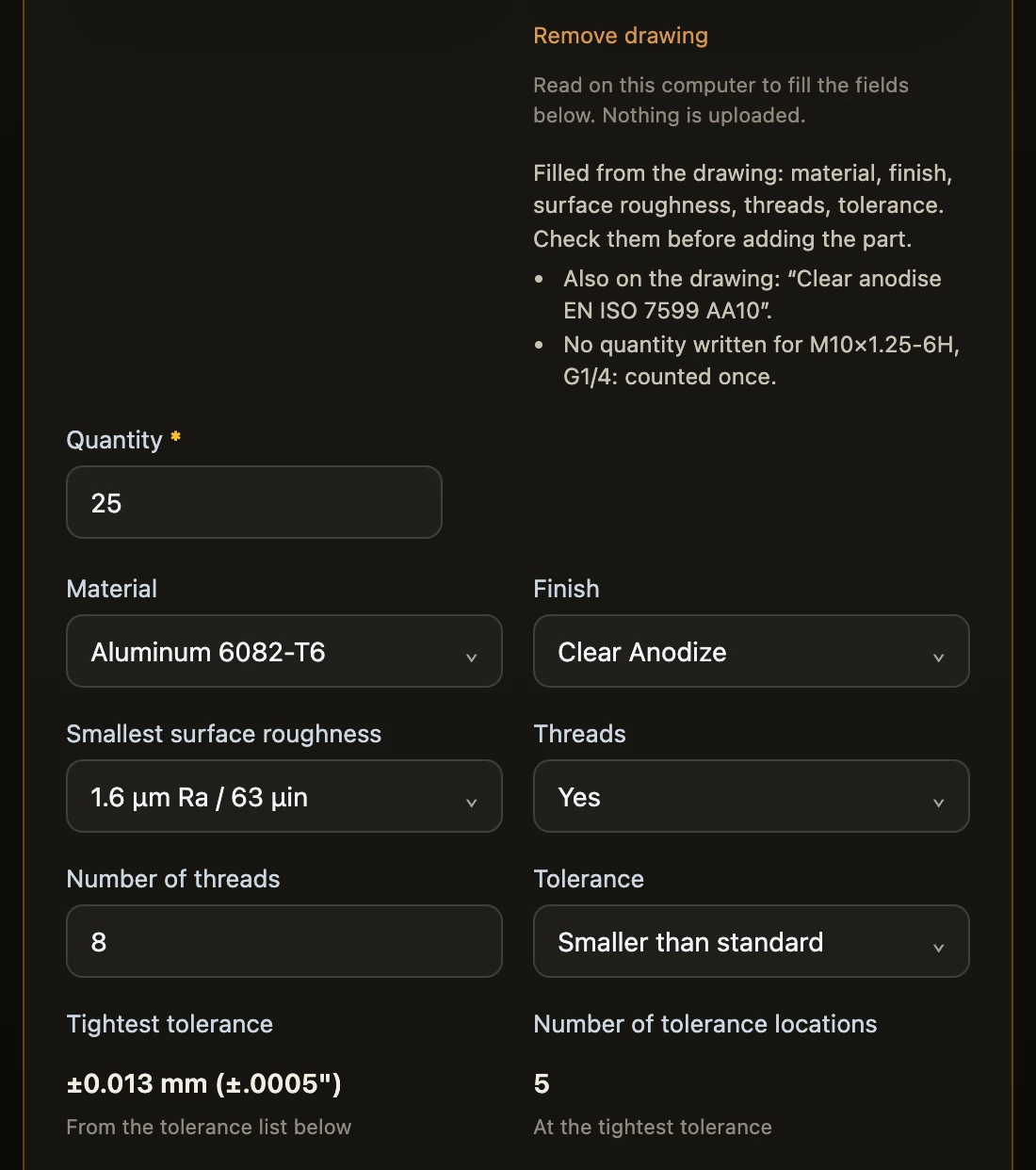
Desktop reads these items from the drawing and fills the fields under the upload:
- Material. Filled only when the text matches one material in your list, for example EN AW-6082-T6 for Aluminum 6082-T6. If CadVex is not sure, it tells you what it read so you can choose.
- Finish and treatment: coatings and heat treatments.
- Surface roughness, when the drawing gives Ra with units.
- Threads: the callouts and how many of each, metric and pipe threads (such as G1/4) alike, with the thread depth and whether the hole goes through or is blind when the drawing says so. A thread with no quantity written is counted once, and CadVex tells you so. A thread named both in a view and in a note is counted once.
- Tolerances: dimensional tolerances and fits such as H7, with the IT grade. They go in the tolerance list.
- Part marking, when a note asks for it.
- Notes from the drawing. They are listed under Drawing notes in the part's General Information tab, and in the Notes group of the Drawing view. View titles, such as "SECTION A-A", are not taken as notes.
Desktop reads PDFs exported from CAD software, scanned drawings, and PDFs printed from a web browser.
CadVex never guesses units. A tolerance or a roughness without units is not used, and a note tells you so. Text read with low confidence, for example from a scanned drawing, is flagged for you to check.
After reading, Desktop lists what it filled: "Filled from the drawing: … Check them before adding the part." Every filled field stays editable. If nothing usable was found, it says "Nothing to fill was found on the drawing."
In the part results, switch the view to Drawing to see the drawing beside the analysis. The Drawing requirements panel there lists what CadVex read, grouped by material, threads, tolerances, surface finish, treatment and notes, in plain words with rounded numbers. Show source highlights where each item is on the drawing. Click Reprocess drawing to read the drawing again (Extract locally if it was never read), or Add a manual requirement.
What Cloud does with the drawing
Cloud starts reading as soon as you select the drawing: "Reading drawing — auto-filling material, finish, threads & tolerance…". When it finishes, the fields are filled and marked "Auto-filled from your drawing — review and edit anything below if needed."
If a value on the drawing does not match a material, finish or roughness CadVex knows, the field says so and asks you to choose. Resolve those fields before you add the part.
Cloud reads the drawing with Anthropic's AI (Claude): the complete drawing is sent to Anthropic, your STEP file is not. There is no switch for this; if your customer does not allow it, do not attach the drawing in Cloud. See Data and privacy.
Threads from the drawing
In both apps, when the cost is calculated, CadVex places the threads read from the drawing on the matching holes of the 3D part, metric and pipe (G) threads alike, and says how many it placed, for example "Threads from the drawing: 8 of 8 placed on the model." Holes drilled to the tap-drill size are chosen before plain holes of the same diameter, such as dowel holes. In Desktop, the thread depth written on the drawing becomes the thread length. Confirm each thread in Confirm thread specifications before you quote.
While the analysis runs
The part card shows the current step and a clock, for example "Reading the CAD model". The status goes from Queued to Analyzing… to Ready, or Failed.
- In Cloud, you can leave the page during a long analysis and come back. An analysis that takes longer than 10 minutes is stopped.
- In Desktop, Cancel analysis stops the part that is running. If you close Desktop during an analysis, it asks you first.
Step 3: Review the parts
Review parts lists every part with its status, quantity, material, unit price and line price, and the total for the batch.
- Click Review → to open a part's results.
- In Desktop, Retry runs a failed part again.
- Click Save analysis & quote later to stop here and quote another day from Analysis History.
- Click Continue to generate quote → to build the quote. See Quotes.
Read the results
A part's results have three tabs, with the 3D part beside them. Move between the parts of the RFQ with ← Prev and Next part →, and close with Finish review →.
General Information
The facts about the part: file name, material, density, volume, weight, the features CadVex found, and the part envelope (its overall size). When notes came from the drawing, they are listed under Drawing notes.
DFM Feedback
The features that make the part harder or riskier to machine, with what to do about them. See DFM feedback.
Cost Analysis
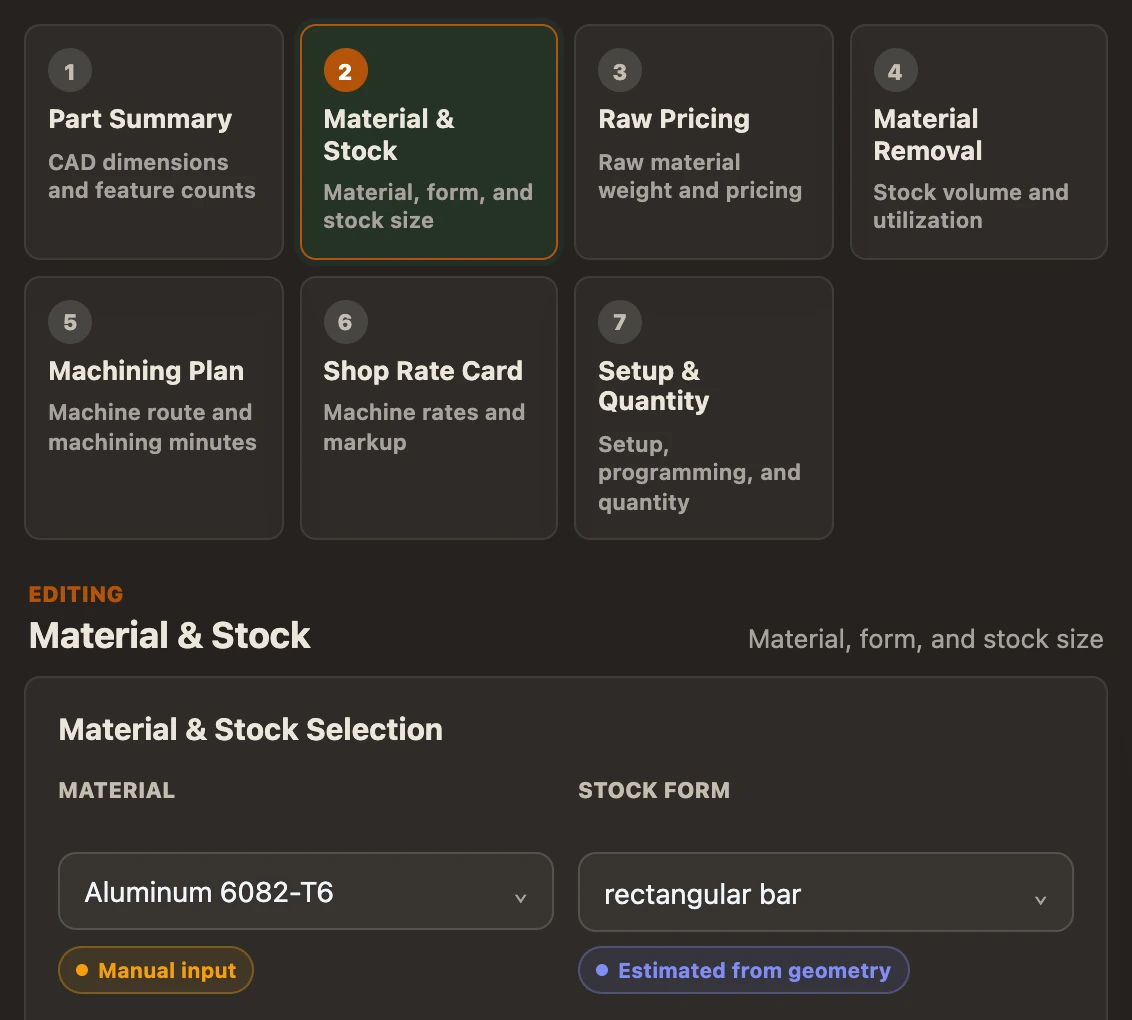
The estimate, in seven steps. Each step shows the values CadVex used, and you can change them for this analysis:
| Step | What it shows |
|---|---|
| 1 Part Summary | The CAD dimensions and feature counts. |
| 2 Material & Stock | The material, the stock form and the stock size. You can choose another size. |
| 3 Raw Pricing | The weight of raw material and its price. |
| 4 Material Removal | The stock volume and how much of it ends up in the part. |
| 5 Machining Plan | The route and the minutes behind every feature. See The machining plan. |
| 6 Shop Rate Card | The machine rates and markup used for this part. |
| 7 Setup & Quantity | Setup, programming and quantity. |
Beside the steps, the live estimate shows the price per part as a low, expected and high value, with the cost breakdown. What changed this estimate? lists every value you changed. ↺ Reset step puts a step back to CadVex's values.
Changes made here belong to this analysis only. See Rates in Settings versus rates in one analysis.
Click Save Analysis to keep your changes. When you move to another part, CadVex saves for you; if that save fails, it asks before you leave. To take the plan out of CadVex as spreadsheet files, see Export the machining plan.
The 3D view
Turn the part with the mouse. The buttons set the view: Fit, Reset, Top, Front, Right and Iso, plus a switch between the normal and the perspective view. Highlights hides or shows the highlighted features, and Snapshot saves a picture of the view as a PNG file.
Find an analysis again
Analysis History lists every RFQ: number, company, customer, date, number of parts, total and notes.
- Open goes back to the parts.
- Create quote (Cloud) or Generate quote (Desktop) goes to the quote step.
- The bin icon deletes the RFQ and its parts.
Next: The machining plan.