CadVex user guide · Chapter 8
Quotes
When the parts of an RFQ are analyzed, CadVex turns them into a quote on your own letterhead. You set the quantities, check the prices and keep track of what you won.
A quote in CadVex is built from an RFQ. Each analyzed part becomes a line. You add the customer, the quote number and the quantities, then CadVex prints the quote on the PDF letterhead you set up.
The PDF is the offer you send to your customer. Check every line before you send it.
Before your first quote
Two things must be set once in Settings:
- Your quote template. Upload your blank letterhead as a PDF and place the fields on it. See Set up your shop. Without a template, CadVex can still save the quote (in Cloud), but it cannot make the PDF.
- Your default currency. Quotes use the shop's default currency, set in Settings → My Profile. In Cloud, CadVex asks you to choose it before you generate or save a quote.
Start a quote
A quote is step 4 of an RFQ: Generate quote.
- RFQ detailsCustomer and reference
- Upload partsSTEP files and drawings
- Review partsCheck each analysis
- Generate quoteLines, PDF, save
You get there in two ways:
- At the end of Review parts, click Continue to generate quote →. In Cloud this works as soon as one part is ready and no part is still being analyzed. In Desktop, every part must be ready.
- From Analysis History, click Create quote (Cloud) or Generate quote (Desktop) on the RFQ.
Only parts with a finished analysis go into the quote. Each becomes one line. CadVex prices every line again when you open the quote step, so the prices match your latest edits.
To come back later, click Save analysis & quote later on the review step.
Customer details
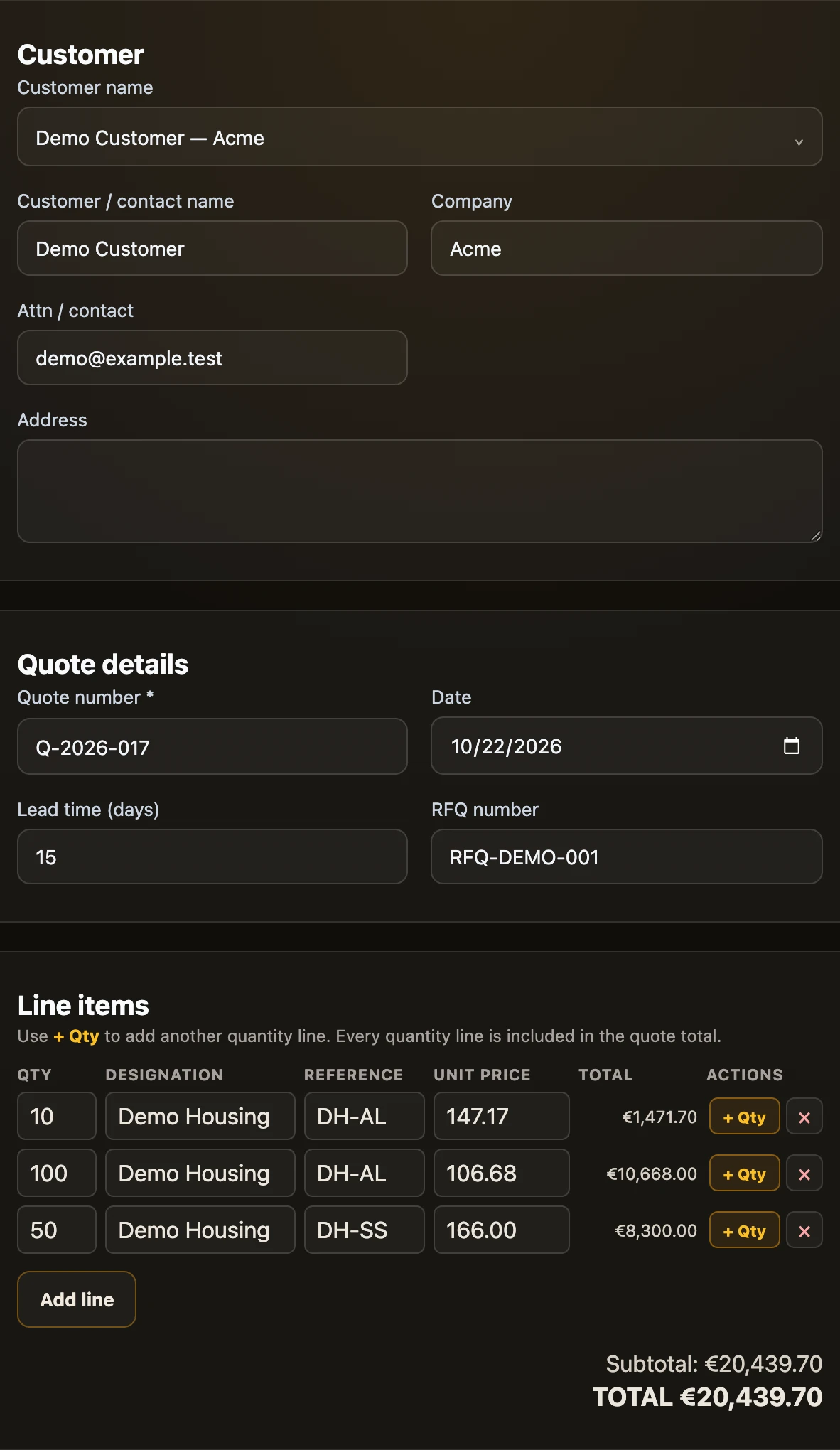
The Customer card holds the name, company, contact (Attn) and address that print on the quote. CadVex fills in the name and company from the RFQ details.
- Cloud: start typing in Company to pick a company you quoted before. CadVex fills in the address from your earlier RFQs and quotes, unless you already typed one. Put each address line on its own line; that is how it prints.
- Desktop: pick a customer with Select customer, or create one with + New customer. Desktop keeps a customer directory on your computer. Changes you make here apply to this quote, and saving the quote updates the directory. Earlier quotes do not change.
Quote details
- Quote number is required. You type it: CadVex does not number quotes for you, so you can keep your own numbering. When the number is already used by a saved quote, CadVex warns you ("Quote number already used") and lets you choose Use anyway or Change quote number.
- Date is today by default.
- Lead time (days) is optional. It prints as a number of days.
- RFQ number comes from the RFQ details. Desktop shows it here; both print it when your template has a place for it.
There is no quote-level discount, validity date or free-text terms field. Put your standard terms on your letterhead template.
Quantity lines and prices
The Line items table has one line per part, with the columns Qty, Designation, Reference, Unit price, Total and Actions.
- Quote several quantities: click + Qty on a part to add another quantity line for it. Every quantity line counts in the quote total, so keep only the quantities your customer asked for.
- Change a quantity: CadVex prices the line again at that quantity. The unit price is not the single-part price multiplied; setups and once-per-job work are spread over the new quantity. The total shows "Updating…" while it works. Quantities are whole numbers.
- Change a unit price: type over it. Desktop marks the line as a manual unit-price override. If you change that line's quantity afterwards, CadVex prices it again and your typed price is replaced.
- Add a line: Add line adds a line that is not an analyzed part, for example a fixture or a test report. Its price stays as you type it.
- Remove a line: use Remove line in the Actions column.
Unit prices and line totals are rounded to the cent.
In Cloud and Desktop, each quantity line can end up on a different machine route. When that happens, the line shows its route, and sometimes the message "edits not applied at this quantity". See Routes and quantities.
If a price cannot be calculated, Cloud shows Retry price. You can also type a unit price yourself.
Assembly and shipping lines
Two tick boxes add a separate line to the quote:
- Add assembly cost adds a line for assembling the parts. Enter the label and the cost.
- Include shipping costs adds a shipping and logistics line. Enter the cost.
In a new quote, these lines get their default label in the language the app is in.
Add DFM notes for your customer
You can attach a manufacturability report to the quote. It tells your customer which features drive cost or risk, with a 3D picture of each one.
- Tick Attach a manufacturability report (DFM feedback with 3D snapshots).
- In DFM findings for this quote, tick the findings to include. Only Critical and Warning findings are offered. All are ticked the first time. Use Select all or Clear all.
- To add a sentence for the customer, click Add comment on a finding and type it in Customer comment.
The report prints after the quote, starting on a new page titled "Manufacturability Review". See DFM feedback.
Preview, download and save
Click Generate / Update preview to see the PDF pages.
In Cloud:
- Download PDF saves the file, named after the quote number.
- Save quote stores the quote in Quote History and marks the RFQ as quoted.
- After a save, the button reads Save again. Each save creates a new, separate quote in the history.
In Desktop:
- The PDF is made on your computer.
- Save quote makes the final PDF, stores it on your computer and opens Quote History. You export the PDF from there with Save As.
CadVex does not let you preview or save while a price is still updating, while a thread specification or a fine surface finish still needs your review, or while a quantity line waits for your route choice.
What the PDF contains
The PDF is your letterhead with CadVex's fields placed where you put them:
- quote number, date and customer, and if you placed them: RFQ number, company, address and lead time,
- the line table: Qty, Designation, Reference, Unit price and Line total,
- subtotal, tax and total, if you placed them,
- the other pages of your template (for example your terms and conditions), unchanged,
- the manufacturability report, if you attached it.
Long quotes run over several pages. Each extra page gets a short header with your shop name, the quote number and the customer, and the column headings repeat. The quantity lines of one part stay together when they fit. Every page is numbered.
The labels print in the language the app is in when you make the PDF.
Track quote status
Every quote has a status. It starts as Draft.
- DraftBeing prepared
- SentWith the customer
- Won or LostThe customer's answer
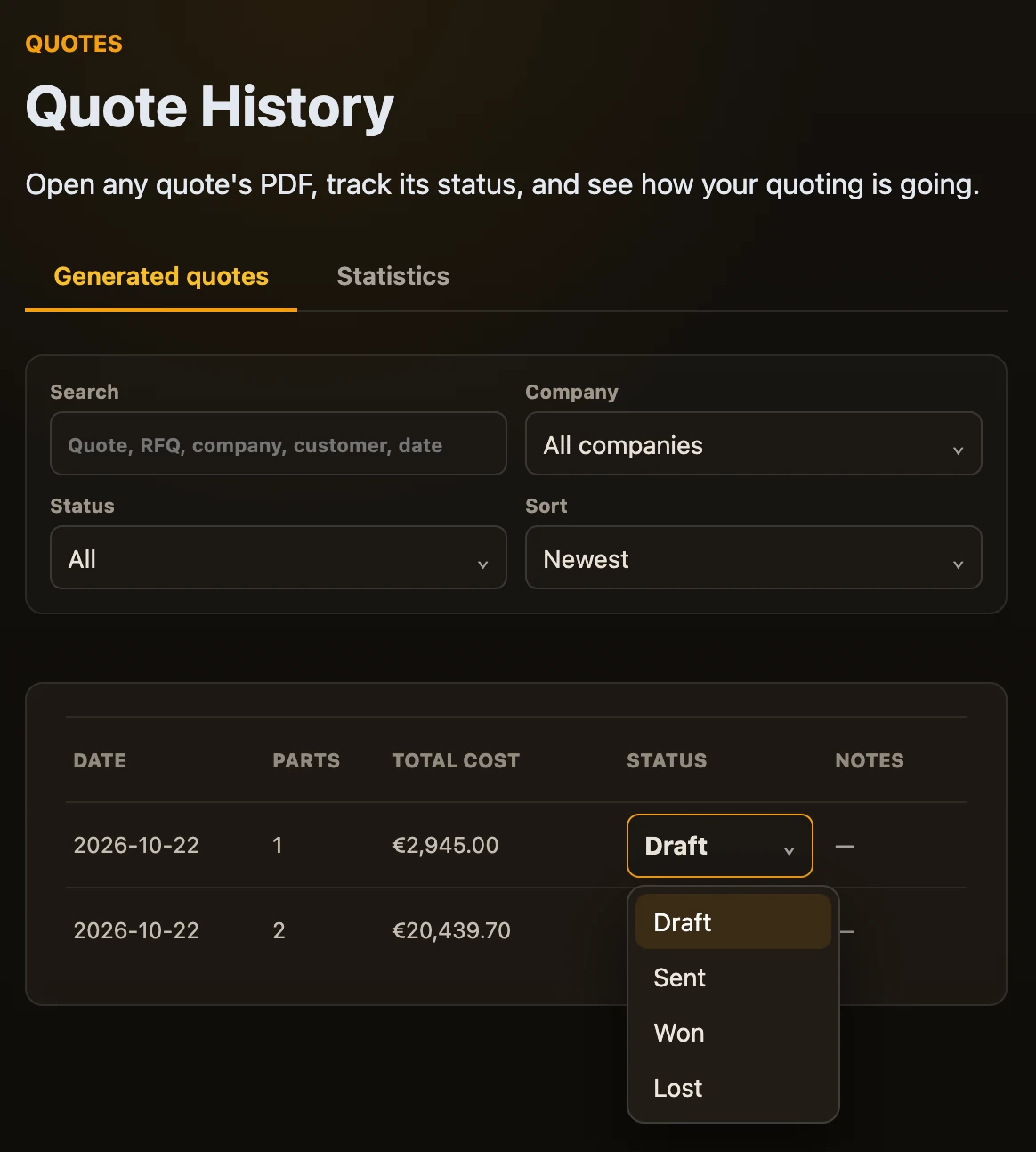
Change the status in Quote History, with the drop-down in the Status column.
When you choose Won, CadVex asks What did the customer order? Tick the lines the customer ordered. For each part you can tick one quantity line. CadVex shows the awarded subtotal, the tax and the won value. Click Mark Won. Click Cancel to leave the status as it was.
The status is for your records and your statistics. It does not change the PDF.
Quote History
Quote History lists every saved quote: quote number, company, customer name, date, parts, total, status and notes.
- Search by quote number, company, customer or date. Filter by company and by status. Desktop can also sort the list.
- Open a quote: in Cloud, click the row to see the PDF, then Download. In Desktop, click Open, or Save As to export the PDF.
- RFQ notes: click View in the Notes column.
- Delete a quote: use the bin icon. This cannot be undone. The RFQ and its analyses stay.
A saved quote cannot be edited or duplicated. To change a quote, open the RFQ again, go to Generate quote and save a new one.
Quote statistics
The Statistics tab of Quote History shows how your quoting is going over a period you choose (from Lifetime to a custom range):
- Total quotes, and how many were decided,
- Win rate: won quotes out of won plus lost quotes. Drafts and sent quotes do not count.
- Value won: the value of the lines your customers ordered,
- Open pipeline: drafts and sent quotes,
- Parts Quoted,
- charts of outcomes and quote activity, your top customers and the materials you quoted.
Amounts in different currencies are kept apart. CadVex does not convert them.
Export your quotes and statistics
Click Export quotes and statistics, beside the period selector, to take the period you chose out of CadVex as CSV files that open in Excel and one JSON file:
- one row per quote: number, customer, dates, status, subtotal, tax, total and value won,
- one row per quote line: part, quantity, route, unit price and line total,
- one file for each table and chart of the Statistics tab.
Cloud downloads one ZIP file. Desktop asks you to choose a folder and writes a new folder inside it; nothing is uploaded.
Next: Data and privacy.