CadVex user guide · Chapter 9
Data and privacy
With CadVex Desktop, your parts, drawings, analyses and quotes stay on your computer. Only the license check and updates go online. CadVex Cloud stores your work in your CadVex account.
Shops often work under NDA, and some customers do not allow their files on outside servers. This chapter says exactly where your data goes in each product, so you can choose the right one and answer your customers' questions.
The legal texts are the reference: the Privacy Policy, the Cookie Notice, the AI drawing processing notice, the list of subprocessors and the Data Processing Addendum.
CadVex Desktop
- STEP files, drawings, analyses, quotes, customers, rates and backups stay on your computer.
- Drawings are read on your computer.
- Online: sign-in, license check and updates only.
CadVex Cloud
- Your work is stored in your CadVex account, so your team can open it from any browser.
- Attached drawings are read with Anthropic's AI (Claude).
- You can delete RFQs, quotes or all shop data.
What stays on your computer with Desktop
Everything you work with stays on the computer:
- part files (STEP) and the 3D views made from them,
- drawings, and what CadVex reads from them,
- RFQs, customers, analysis results and costing,
- quotes and their PDFs, quote templates,
- your rates, materials and stock sizes,
- backups.
The analysis runs on your computer, and the analysis engine is not allowed to use the network. The drawing reader runs inside it, so drawings are read without leaving the computer.
Desktop has no crash reporter and no usage analytics. Its diagnostic log stays on the computer, and you only send it to us if you choose to.
What Desktop sends over the internet
Desktop goes online for these things only:
| Why | What is sent |
|---|---|
| Sign-in | Your email address and the code we email you, or a sign-in made in your browser. |
| License and device | Your account and shop identifiers, the app version, the platform, a generic device name, and anonymous fingerprints of the installation and the device (hashes, not your files). |
| License check | The same, when Desktop starts and every 12 hours while it runs. |
| Updates | The app version and platform, to check for a new version: about 20 seconds after Desktop starts, then every 6 hours while it runs, when the computer wakes from sleep, and when you click Check for updates. Then the update download, when you update. |
The plans, billing and legal pages open in your own web browser. Desktop passes no account data to them.
Your STEP files, drawings, results, quotes, customers and rates are never part of these messages.
The Privacy Policy and the privacy text in Settings → My Account describe these messages, update checks and downloads included.
Where Desktop keeps your data
| Computer | Folder |
|---|---|
| Windows 11 | %LOCALAPPDATA%\CadVex |
| Mac (Apple silicon) | ~/Library/Application Support/CadVex Desktop/CadVex |
Part files are stored encrypted. The key is protected by the computer itself: the Keychain on a Mac, the Windows data protection on Windows. Do not move or edit these folders by hand. Use backups instead.
Back up your Desktop data
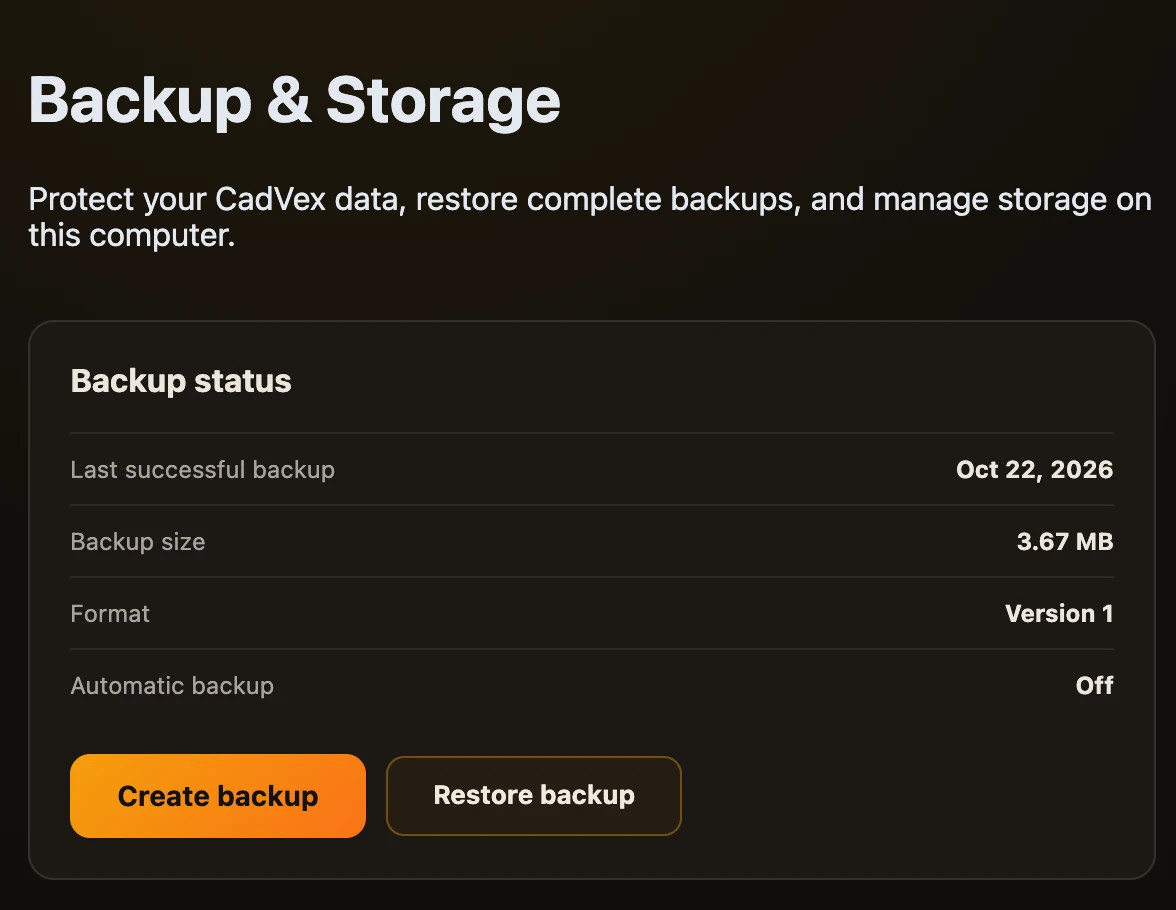
Open Settings → Backup & Storage.
- Create backup writes one
.cadvexbackupfile with your database and your part files. You protect it with a password of at least 12 characters. Keep that password safe: without it, the backup cannot be opened. - Automatic local backup can run weekly or monthly, and keep the last 3, 5 or 10 backups.
- Restore backup shows what the backup holds before it replaces anything. If a restore fails, your current data is not changed.
A backup holds your work, not your license or device identity. It can be restored on another computer.
Move Desktop to a new computer
- On the old computer, create a backup (Settings → Backup & Storage → Create backup) and copy the file somewhere safe.
- On the old computer, deactivate it: Settings → My Account → Deactivate this device.
- Install CadVex Desktop on the new computer and sign in. See Install and activate Desktop.
- Restore the backup: Settings → Backup & Storage → Restore backup.
Your license allows a limited number of replacement activations in a rolling 30-day period. If you reach the limit, write to [email protected].
Delete data in Desktop
- One RFQ: delete it from Analysis History, or from the storage details in Settings → Backup & Storage. This removes the RFQ, its part files and its results. Backups you made earlier still hold it until you delete those backup files.
- Before you uninstall: if you will use CadVex on another computer, deactivate this one first (Settings → My Account → Deactivate this device), and keep a backup if you may need your work again.
- Uninstall on Windows: the uninstaller removes the program and keeps your data in
%LOCALAPPDATA%\CadVex, in case you reinstall. Delete that folder if you want the data gone. Desktop also keeps a small folder of app session data in%APPDATA%\CadVex Desktop; you can delete it too. - Uninstall on a Mac: drag CadVex Desktop from Applications to the Bin. Your data stays in
~/Library/Application Support/CadVex Desktop, in case you reinstall; delete that folder if you want the data gone. Desktop also keeps its keys in your login keychain: to remove them too, open Keychain Access and delete CadVex Desktop Safe Storage and the keys whose names start with CadVex-Desktop-Device.
Backup files you saved yourself stay where you put them. Delete them separately.
What CadVex Cloud stores
Cloud keeps your work in your CadVex account so you and your team can reach it from any browser:
- your account, your shop details and your settings (rates, machines, materials, stock sizes, quote template),
- the STEP files and drawings you upload, in private storage,
- the 3D views made from them,
- RFQs, analysis results, quotes and the customer details you typed in them.
Your data is kept while your account is active, unless you delete it sooner. When an account is closed, the data is deleted, normally within 30 days after the export period described in the Privacy Policy.
Drawings in Cloud
When you attach a drawing to a part in Cloud, it is read with Anthropic's AI (Claude): CadVex sends the complete drawing (PDF or image) to Anthropic's AI service, which reads the material, finish, threads, tolerances and notes from it. Reading starts as soon as you select the drawing. Your STEP file is not sent.
There is no switch for this: attaching the drawing is what starts the reading. To avoid it, do not attach the drawing in Cloud; type the requirements yourself. CadVex Desktop reads drawings locally, on your computer. The AI drawing processing notice explains how long the provider may keep the drawing. See Run an analysis.
Delete data in Cloud
- One RFQ: in Analysis History, click the bin icon. This removes the RFQ, its parts and their files.
- One quote: in Quote History, click the bin icon.
- All shop data: in Settings → Delete Shop Data, type your shop's exact name, then Erase all shop data. Only an administrator can do this. It removes all RFQs, parts, quotes, stock and their files. Your account and settings stay.
- Close the account: write to [email protected].
Your data requests
For a copy of your data, a correction, a deletion or any other request about your personal data, in Cloud or Desktop, write to [email protected].
Cookies and analytics
The CadVex website and Cloud ask for your consent to analytics cookies. You can change your choice at any time with Privacy choices on the Cookie Notice page.
- Before you consent, only cookie-free counting runs.
- After you consent, product analytics run, including session recordings with passwords hidden.
- Some product events are recorded on our servers either way. They never include your files, drawings or quotes.
CadVex Desktop has no analytics.
Next: Troubleshooting and FAQ.